Loopysue
Loopysue
About
- Username
- Loopysue
- Joined
- Visits
- 10,414
- Last Active
- Roles
- Member, ProFantasy
- Points
- 10,161
- Birthday
- June 29, 1966
- Location
- Dorset, England, UK
- Real Name
- Sue Daniel (aka 'Mouse')
- Rank
- Cartographer
- Badges
- 27
Latest Images
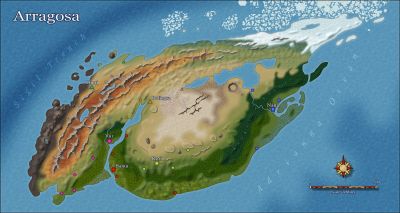
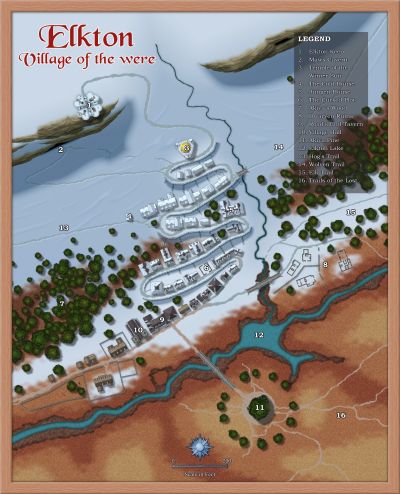
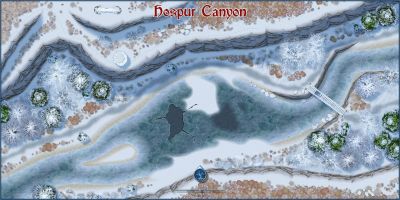
-
Exporting Issues...all of a sudden
The span of the sheet effect is greater than the span of the rendering pass, so when the pass just misses the polygon it doesn't recognise the sheet effect and doesn't render it.
There is an overlap between passes designed to reduce this problem, but it isn't always large enough. The best way to get rid of most of it is to increase the span of the rendering pass.
Type EXPORTSETMPPP and hit enter. The command line will show you a number. If you haven't ever changed the setting before it will be 4000000 (four million). Type 40000000 (40 million) and hit enter, then try again.


-
Festive Winter Card Challenge WIP: Frosty Village
I can paint, draw, and even sculpt reasonable looking trees out of wire and modelling clay, but I'm still crap at watercolour.
You, on the other hand, are great at it - even when there are no actual watercolours in sight :)
-
Blending
That is the difference between vector symbols and bitmap symbols.
For reasons of performance I think, the bitmap symbols are redrawn twice, which means that not many sheet effects apply to them, or apply only to the first time the symbol is drawn.
You could try this:
Type DELAYDRAWSYM and hit enter, so that the prompt appears in the command line at the bottom, and then type zero and hit enter again, then redraw the map. It stops the second redrawing of the symbol.
-
Trying out a Planescape style
Here's a tip I've only just recently become aware of, thanks to Remy's comment on another thread. You can use Color Key on imported images as long as you switch DELAYDRAWSYM from 1 to zero.
It's a marvellous map you've made. I wouldn't call it a mistake!
-
WIP - Maelgoth
Looks like its coming along just fine :)
Don't worry about adjusting sheet effects if you prefer things to look a bit different to the way the style is designed. It was designed to be a close replica to the original Ferraris map. That doesn't mean you have to stick to the design if you don't want to.