


Loopysue
Loopysue
About
- Username
- Loopysue
- Joined
- Visits
- 10,415
- Last Active
- Roles
- Member, ProFantasy
- Points
- 10,161
- Birthday
- June 29, 1966
- Location
- Dorset, England, UK
- Real Name
- Sue Daniel (aka 'Mouse')
- Rank
- Cartographer
- Badges
- 27
Latest Images
-
WIP Everyone's making Inn's & Taverns - making floor look used / abused
To make something pop is to make it stand out, or up in the case of walls. Some people lengthen and deepen the shadows to make things look taller, though this can be a bit misleading because it makes the whole map look as if the building has no roof whatsoever. Some people play with the glows, especially a faint dark glow set to inner on the floors coming in from the edge, since it mimics the real world. Light never gets into the corners as intensely as it hits the floor in the middle of a room.

-
River Channels with FT3+
That doesn't sound right.
Have you run Tools->Actions->Burn into surface?
It's a while since I wrote ODW, but I think this is necessary before you can do rivers well.

-
WIP Everyone's making Inn's & Taverns - making floor look used / abused
You've worked hard on it, and it's a pretty good start :)
-
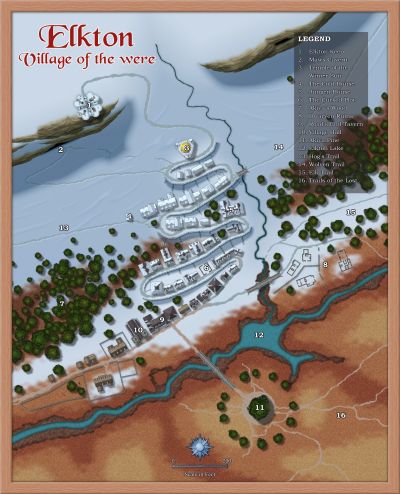
Winter Village style development (March 2022 CA issue)
Two different views...
Since the same thing is happening on FB where I asked the same question, then at a guess I've got it about average, which is what I wanted. Some of the buildings might have more or less snow, just like in the photos we've seen above.

-
Winter Village style development (March 2022 CA issue)
LOL! They're meant to be lead arch dormers, but maybe the colour has gone off somehow - too yellow against all the blue snow? I will check the original buildings.
Bits of house would be the only way I could think of allowing people to make their own snowy building, since it's going to be impossible to make a roof fill that is snowy in all the right places to be used in the House tool, but we will have to see if there is time.
-
Winter Village style development (March 2022 CA issue)
I think people were more afraid of what the church would do to them back then ;)

-
Connecting Symbols
I didn't realise that would work with connecting symbols. Thanks Wyvern. Now I'm trying not to laugh and groan at all the times I've drawn long snakes of connecting symbols just to grab the one I want!
-
Global Lighting Not Working
Thanks
I had to watch the first part a couple of times to revise what was said in that session, and I just caught it at 2x speed (trying to work this out fast for you). Ralf mentions that he already has some lighting effects set up in the sheets just before he switches on the Activate Lighting. That is why he gets a reaction from the map, and you don't.
There are two lighting sheet effects used to make a lighting setup. The first is Wall Shadow, Point Light Setup, and is used on any sheet where there are objects or shapes that you want to cast a shadow. You can adjust the Shadow length on this effect so that tables and chairs cast shorter shadows and walls cast infinite shadows.
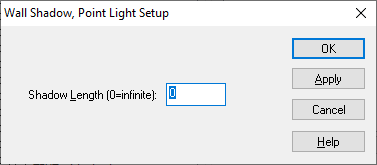
The Wall Shadow, Point Light Finalize finishes the setup. Any sheet above the sheet with this final effect on it won't be affected by the lighting setup, and will appear as if light by ordinary daylight. That can be useful for the frame of the map and titles and labels, etc.
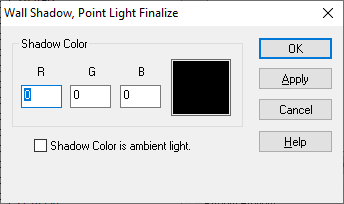
You will need to add these sheet effects (as many of the setup effects as you need on different sheets, but just one of the finalize effects) before you see a response to the activation of the lighting.
-
Winter Village style development (March 2022 CA issue)
@jslayton LOL! And thank you :D I think I will leave them as they are for now, because you are right - darker and they lose the arched feel ;)
@mike robel Thanks Mike :) I'm sorry to hear you really don't like snow all that much! I think you aren't alone, though. I love the beauty of a snowy scene, but I'm one of those people who get near-frostbitten fingers the moment I step outside.

-
CC3+ Drawing a cave system gives artifacts
It may be that you have too much fractalisation going on, since those kinds of artefacts tend to happen when there are nodes too close together.
If you have thousands of nodes when you use Info List on the entity (just to make sure I'm right about that), try using the keyboard command SIMPLIFY to reduce that node count. Even if you use quite a small factor the command will at least remove the nodes that are causing the artefacts.
If SIMPLIFY is the answer, delete the wall or the floor that you didn't simplify, and use change like drawing tool to replace the missing part identical to the simplified shape.

