Loopysue
Loopysue
About
- Username
- Loopysue
- Joined
- Visits
- 10,417
- Last Active
- Roles
- Member, ProFantasy
- Points
- 10,163
- Birthday
- June 29, 1966
- Location
- Dorset, England, UK
- Real Name
- Sue Daniel (aka 'Mouse')
- Rank
- Cartographer
- Badges
- 27
Latest Images
-
Advice on Drawing Mines
It looks good to me :)
You can draw any shape you please, including an arrow, using the primitive tools on the right hand side. Polygon is probably the one you want in this case. Depending on what you want the snap grid would be useful here. And don't forget that you can scale the arrow once you have drawn it.
I would add a new sheet for your arrow first, so you can control the sheet effects for your arrow without disturbing the rest of it.

-
Live Mapping: Ice Caves
We have a new technical term for when Remy's cat crosses the camera. It's called "Fur Screen". Like green screen, but black and kind of fluffy.

-
Photoshop to Fractal Terrain
Start with a new flat world and import your bitmap as an image overlay. Depending on what the image is like you can then use it to make a selection to raise the land from the sea and sculpt it from there.

-
Issue with outlines after copy/pasting landmasses into larger map size
You could go back to the original and use File->Resize Drawing Area to make that one the size you really want it to be.
Or if you've done too much work in your new map to want to go back to it...
In the Draw menu there is a Draw Like command. You can use this to pick up the properties of any polygon entity in the drawing and be ready to draw with those properties.
Alternatively, having picked up the properties from the more desirable landmass you can then use Change Properties to change the properties of the others. The defaults offered to you in the Change Properties dialog will at that point be the ones you need to make them match.
Be careful, though. Some landmass drawing tools draw polygons on different sheets, like the Mike Schley style for one. In that case you should hide all but the LAND sheet, or all but the COASTLINE sheet, and work on them separately.

-
Vincula, the City of the Mountaingate
Hi Driechel :)
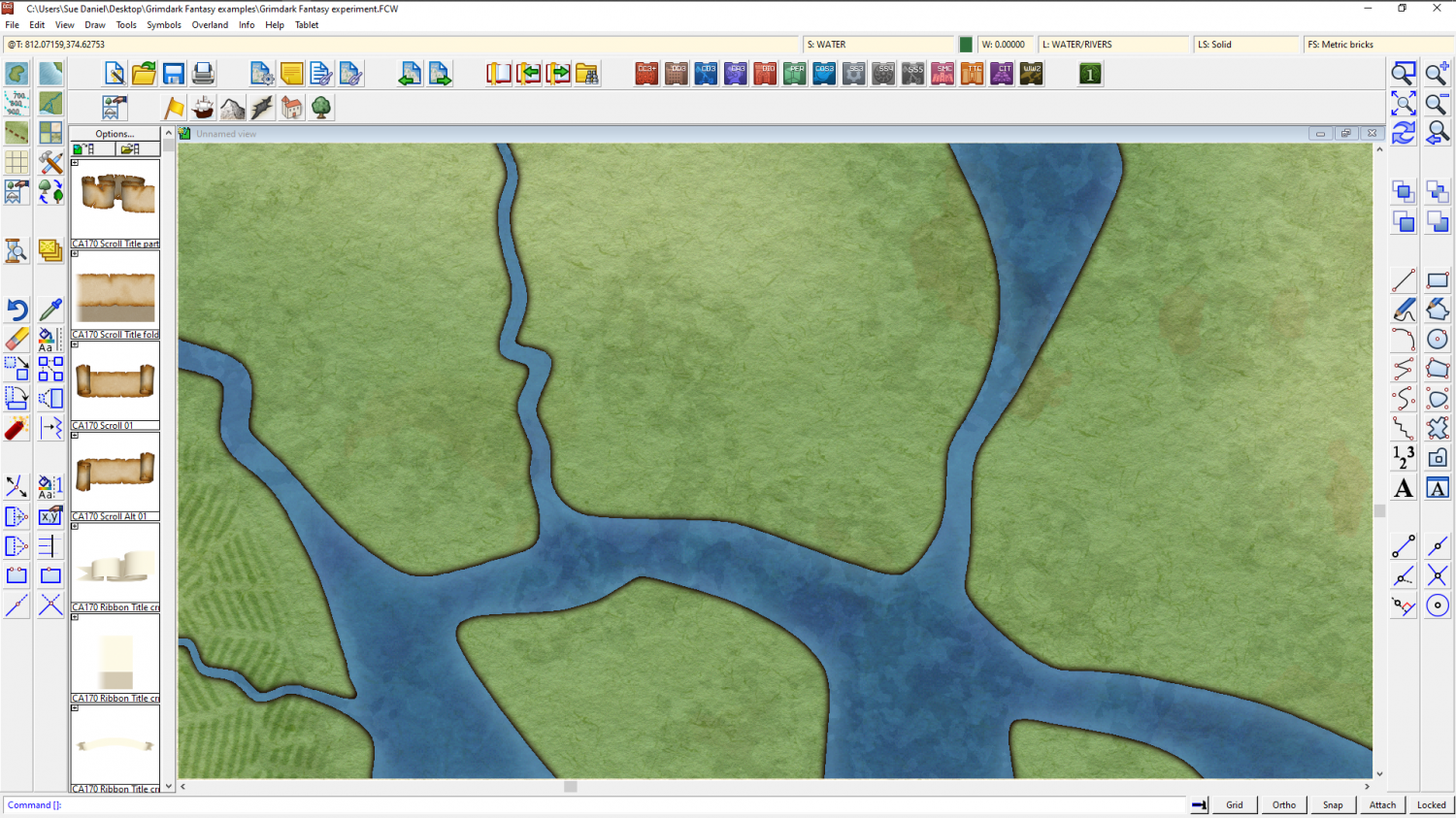
The only way to really make it work is to put the ocean above the land, and put all the water on the same sheet, whether it is river or ocean. If that river is going to be a major feature of your map it might be worth drawing it as an extension of the sea, rather than an additional line with a width. That will help even more.
As for sheet effects, a light shore can be created by having a paler blue glow set to inner on the water sheet. Deeper water can be added a couple of different ways, but I'll not get too far ahead of where you are just yet.
Here is a small section of a map I'm working on now that shows what I mean. The water is above the land, even though the sheet effects are designed to make it look like the land is above the water. You can see how drawing the rivers as part of the ocean in city maps can make a lot of difference.

-
Banners
Thanks for the announcement, Wyvern :)

-
Vincula, the City of the Mountaingate
I often use the Street tool to fill everything out, and then pick buildings to delete and replace with something more special. I built Orde with the House tool, making the special buildings first. In fact I think the only buildings in that map which aren't made with the House tool are the large rectangular ones with courtyards in the middle, which were drawn as polygon roof pieces and then shaded.
-
Vincula, the City of the Mountaingate
You can pick several different house styles and have a random mix of them. Most of the presets are mixed. Click the Street Settings button and add another 3 different house types to your mix. The road on the map was populated by a single swipe of the Street tool using the 4 style mix you can see in the dialog box.
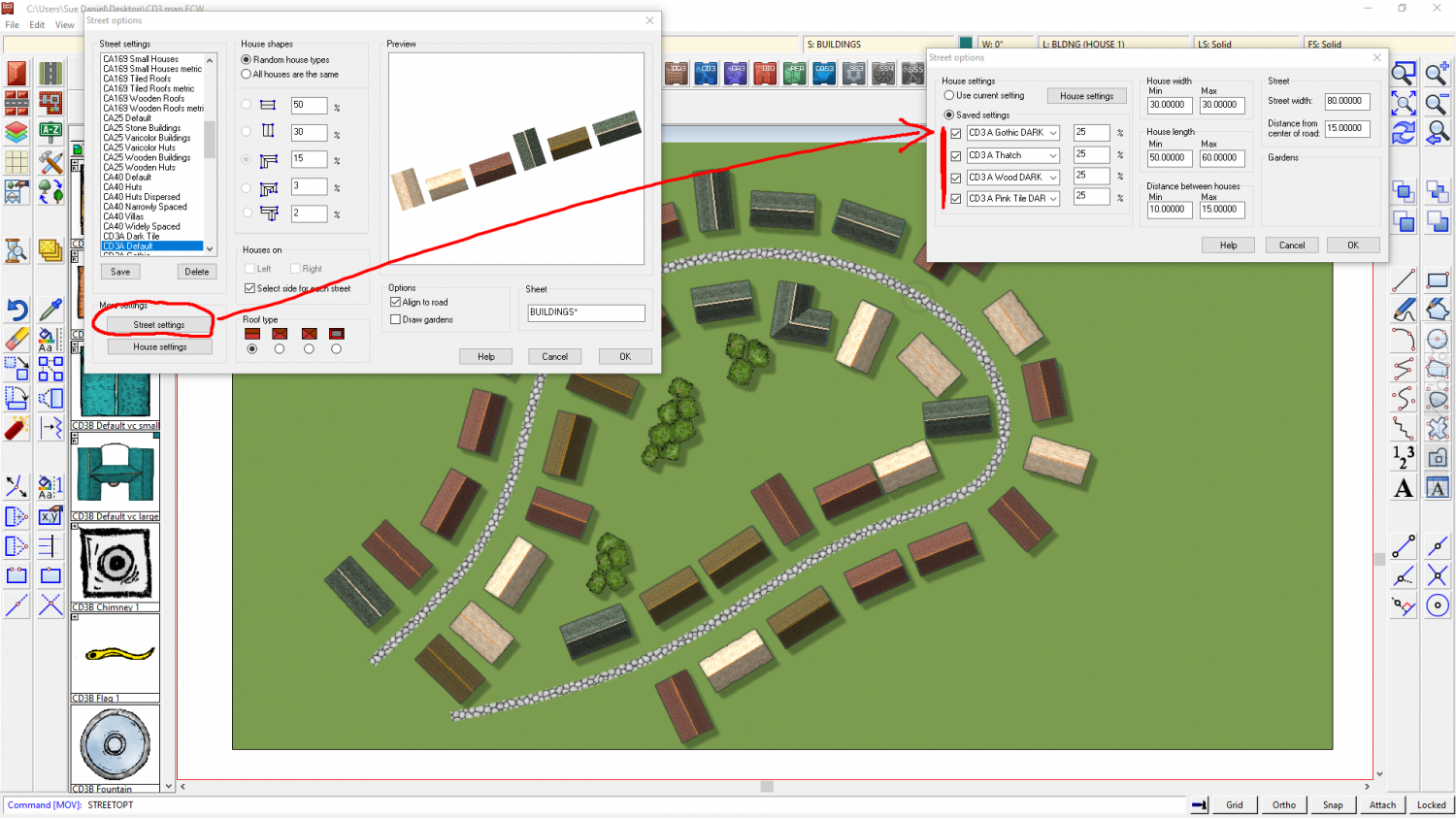
This is good for getting the basic fill of a city, and yes they are a bit the same even though I now have a nice mix of 4 different colours, but the idea is that you use a range of Street settings (remember to save any you edit under a new name so you can get them back).
Once the filling in is done you can then pick and delete houses here and there and take the time to draw a slightly more special shape using the House tool. Remember that you can add dormer windows and extensions. I used those tools a lot in Orde.
Once that is all done you can then add more little details, like garden boundaries and trees. That's all Orde is - a load of random street stuff jiggled around using the move tool, and with special buildings and trees added. Plus the city wall and the canyon of course.
-
City Cliffs - Incorrect Textures and other problems.
The fills you are showing above are only the fills for the bonus issue. These are the fills for the main issue of the cliffs - the ones I think were missed out of the very first installer.

As you can see, on my system at least there are two folders, though this might be because I created the fills. It's sometimes a bit difficult for me to know whether something is there because that is where I created it, or because the official PF installer put it there. The other folder is identical to yours, but I still have the original texture generating files in a subfolder within it.
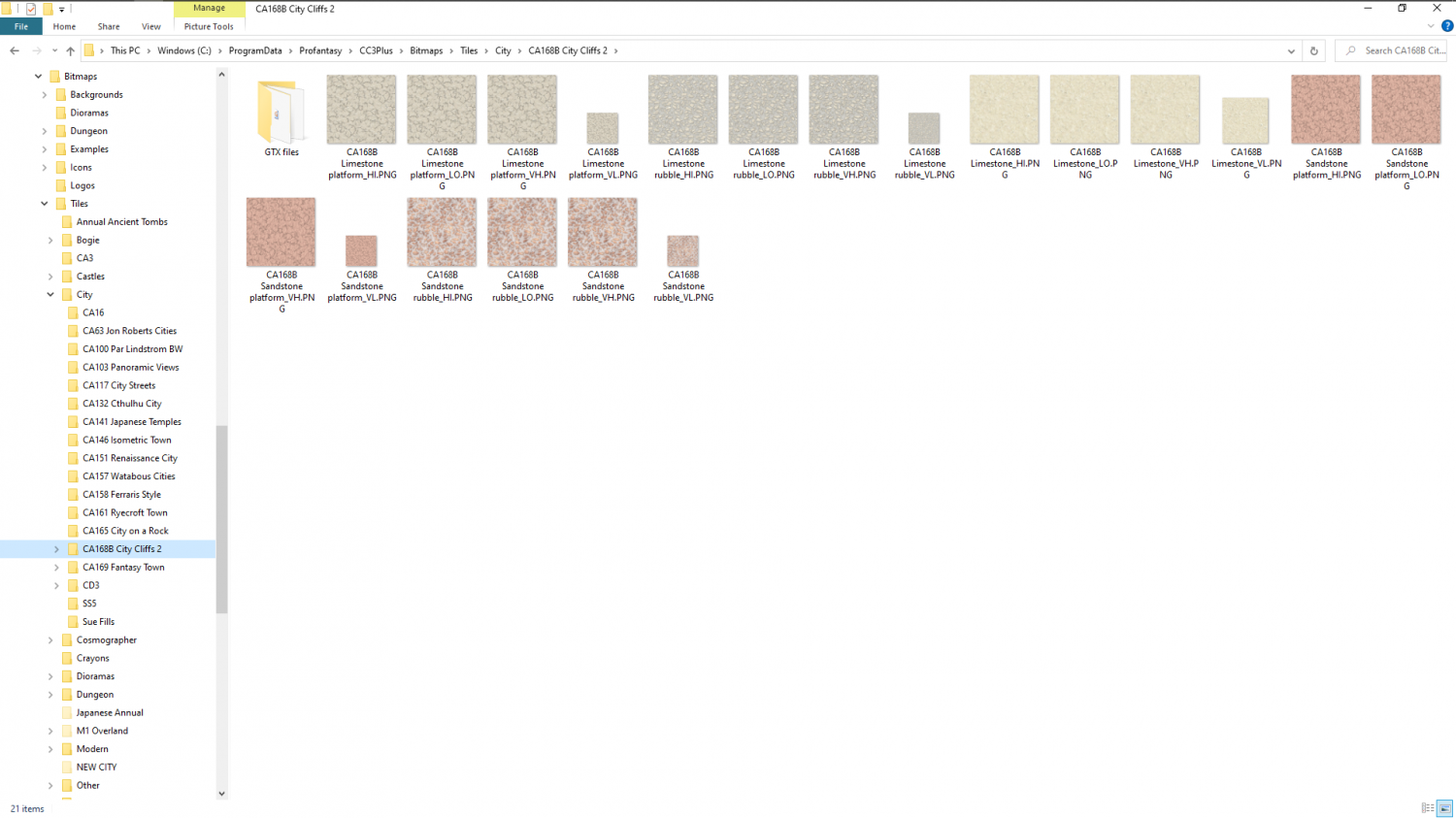
EDIT: That solid Limestone fill is a source fill, which is one I made as a precursor to the other limestone fills. It probably got left in that folder when I was packing everything away. It shouldn't be there, but in the GTX files subfolder that only I have. That folder holds all the original artwork.
-
Completed: section as regional map
Great work, Hans :)
To me, the main building there is reminiscent of the Tyrell building from Blade Runner.