
Loopysue
Loopysue
About
- Username
- Loopysue
- Joined
- Visits
- 10,419
- Last Active
- Roles
- Member, ProFantasy
- Points
- 10,163
- Birthday
- June 29, 1966
- Location
- Dorset, England, UK
- Real Name
- Sue Daniel (aka 'Mouse')
- Rank
- Cartographer
- Badges
- 27
Latest Images
-
How to make the line of "default cave" darker and wider
Ok, thanks.
If you want to make the wall thicker, hide all the other sheets and use Change Properties on the wall alone, giving it a wider line width.
If you want to make the sheet effects more prominent (the glows and shadows), you can edit each effect singly to give them larger widths or blurs. To do that, open the Sheets and Effects dialoge and pick the sheet, then pick the effect you want to edit, and click the EDIT button on the right next to the effects panel.

-
a personal wish-list
Ah, I see.
Maybe generate a temporary grid using 'Hex or Square overlay' in the Draw menu, and count the squares?
CTRL+Z to undo the grid once you've counted.

-
Bridgetown - An SS6 experiment.
This is going to look really great when you're finished, I'm sure :)

-
Castle Crimson and Reveler's Way
Lovely map :)
You can see the details better here than on the FB page.
The fields between H and D have no edge fade on them, but I think that actually enhances the map as a whole - a bit of contrast against all those around with faded edges. It must be one of those very immaculate farms!
-
Is there any way to adjust contrast?
Would this work for you?
A single RGB Matrix Process sheet effect on the 'Whole Drawing' level (radio button at the top), with everything set to 1 except the end column.
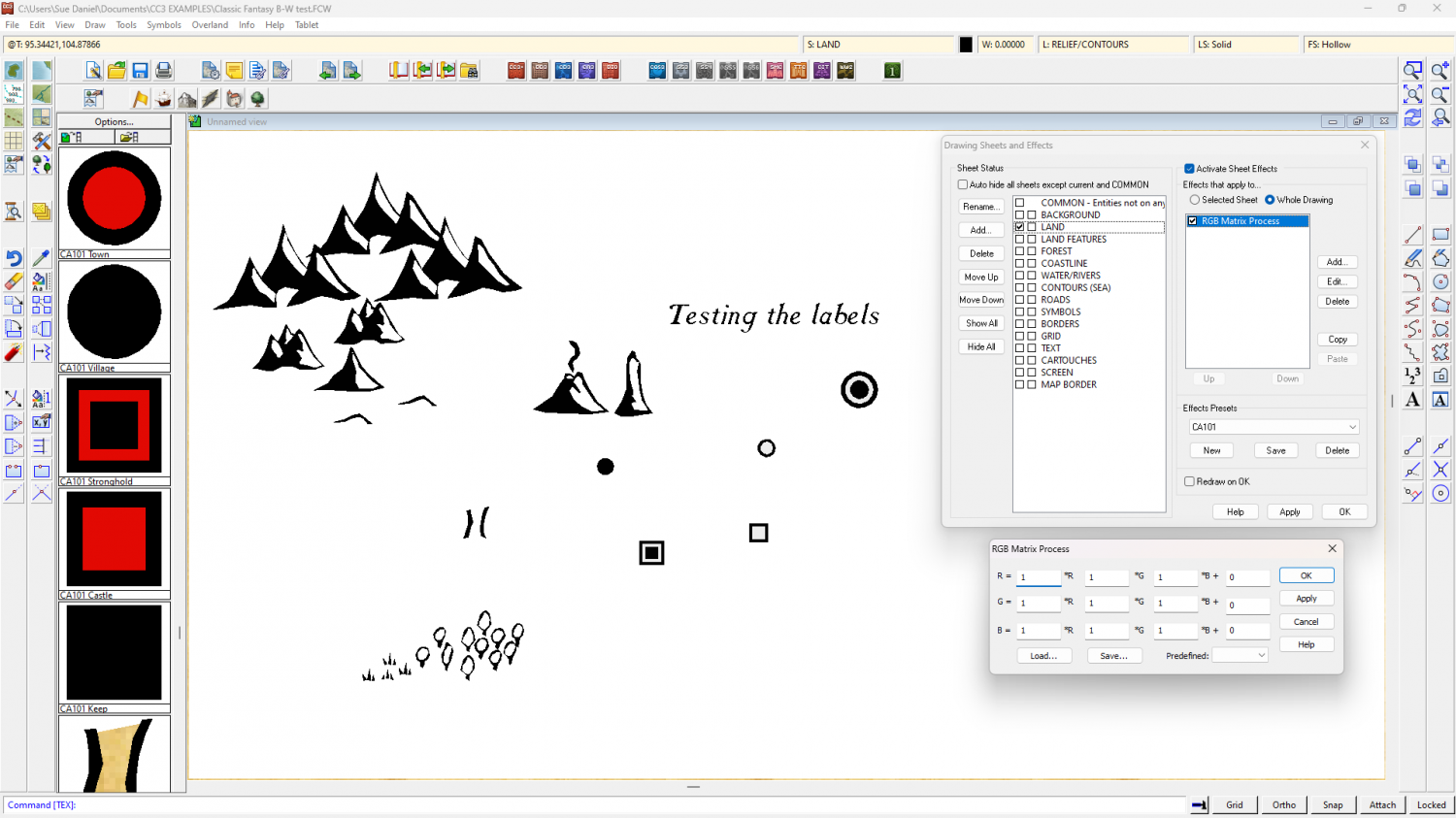
The only grey I can see in my amazing test map is where the structure symbols are red.

-
Community Atlas - NE Arum Nur Highlands
I am surprised it hasn't knocked everything off the edge of the map yet.

-
Four weeks later and here's my first map!
Hi Martin :)
That's a really great first map (and I'm not just saying that because you worked my name into the labels).

-
DD3 Room/Floor/Wall Drawing tools
Hi Viepyr :)
Click the little window as the far right end of the Status Bar (top of the window) where "FS:...." appears.
Click the "Bitmap fills" tab in the dialog that appears, and select the fill you want to rescale from the Fill Style Name dropdown box.
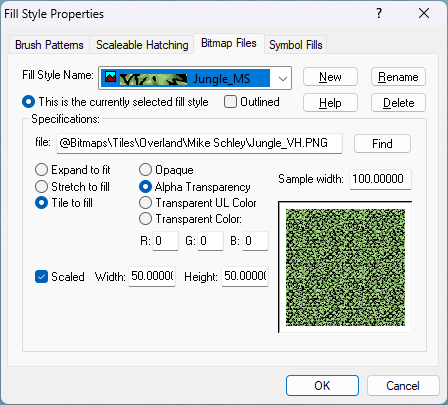
In the "Specifications" sub-panel there is a checkbox called "Scaled" with a "Width" and "Height" specified next to it. Make sure that box is checked and scale the fill according to how many map units wide and high you want it to be.

-
Community Atlas - Forlorn Archipelago - The Bleakness - Dungeon of the Dragon
When you fractalise smooth polygons they become straight ones again, so you will have to make them smooth again if you want them to be smooth polygons.
-
Live Mapping: E Prybylski 2 and Political Maps
Hi everyone! :D
In this week's live mapping session Ralf will be taking a look at August's Annual issue - the second part of the E Prybylski overland style, and how to do political overland maps.
Come join us live and join in the discussion on Youtube here:
https://www.youtube.com/watch?v=b_QMpUP2MmU
Or watch it here on the forum if you prefer.