


Loopysue
Loopysue
About
- Username
- Loopysue
- Joined
- Visits
- 10,417
- Last Active
- Roles
- Member, ProFantasy
- Points
- 10,163
- Birthday
- June 29, 1966
- Location
- Dorset, England, UK
- Real Name
- Sue Daniel (aka 'Mouse')
- Rank
- Cartographer
- Badges
- 27
Latest Images
-
Is there a discord? Also struggling with this awful controls, especially when it comes to floors
I think there may have been a Discord at some point. It may even still exist. I don't know. I really hate Discord. You spend half an hour explaining something to someone and it's vanished a day later when someone else asks the very same question.


-
CA style development - "Darklands City" (issues for September and December 2021)
Help?
I hope you will be surprised in the end. Darkness is all the more frightening if it masquerades as light. But of course there will be varicolour ;)

-
Problem with lighting
This looks like an issue with the Maximum Pixels Per Pass.
If the image resolution is quite large the rendering engine makes more than one pass to render the whole image. There is a percentage overlap but this may not always be enough to capture the source of a light that lies just outside the edge of the current pass. That means the pass may be calculated much darker than it should be.
Type EXPORTSETMPPP and hit the Enter key. In the command line you will probably see the number 4 million. Type 40 million (without any commas) and hit Enter again. Then try to export your map again.
-
WIP: Now, for something completely different...
Looking like a really attractive land shape there, Calibre :)
The interesting thing about the idea of centreing or not centreing the shot. Painters are taught never to plonk things centrally without thought for the overall composition with emphasis on thirds, fifths and sometimes sevenths - diagonals and golden rectangles... all kinds of stuff I learned and subsequently forgot over the years, while photographer's are taught exactly the opposite. Place the subject central to the shot.
-
Install Order?
I hope you find a way to introduce some kind of acceptable support service that will balance with the care you provide yourself, or caring for a person single handed like that can really drain a person. I did it for several years when I was raising a disabled stepson, so I do know exactly what it's like.
I had that feeling when I came back to CC3 a couple of years ago, but you would be surprised just how quickly it comes back. I only had to find out how to do a thing and it was back in my memory again just as firmly as it always was before.

-
CA style development - "Darklands City" (issues for September and December 2021)
Thanks, Mike :)
The difference is in the outline style. A being the traditional black line all the way around, and B being a more subtle alternative. Niether are being used, since in the meantime I have come up with a third solution.

-
Darklands Border Tool
It was desinged to show one country per map, with a sort of vingette of dark purple around the outside of the red line.
However, if you adjust the sheet effects by deactivating everything that is there and adding the usual Edge Fade, you should be able to create them just like you can on an MS overland map. You may have to modify or create a new border drawing tool, so that it draws with the current colour instead of always drawing in bright green.

-
WIP: New Map, New Issues...
You're welcome, Cal :)
It's because the way the drawing tool trace function doesn't actually work that well with smooth lines. You don't have to draw everything with straight lines and be done with it, forsaking all smooth lines. You only need to convert smooth lines you want to trace temporarily to straight lines, and then convert them back again when you have finished. It works a lot better if you also use a drawing tool that draws in straight lines rather than smooth ones. But you can convert both to smooth, so you don't have to put up with any straight lines if you don't want them.
The jumping may aso be down to smooth line tracing. I've noticed it myself when editing nodes on smooth lines. Sometimes it picks one at very nearly the other end of the smooth line instead of just where I'm clicking. Converting everything to straight lines while you work should cure that. If it's still jumping you might have too many nodes all in one place here or there, and it might be as well to use SIMPLIFY set to 0 before you start to make sure you don't have any that are right on top of one another.
-
Erdan Worlds metric. Problem with "things" size
You're right. The drawing tools all want to draw things on either RIVER, or RIVER MOUTH.
Rather than change the drawing tools it might be easier for this one map to change the sheet names for those two sheets so that the drawing tools all automatically draw on the intended sheets like this.
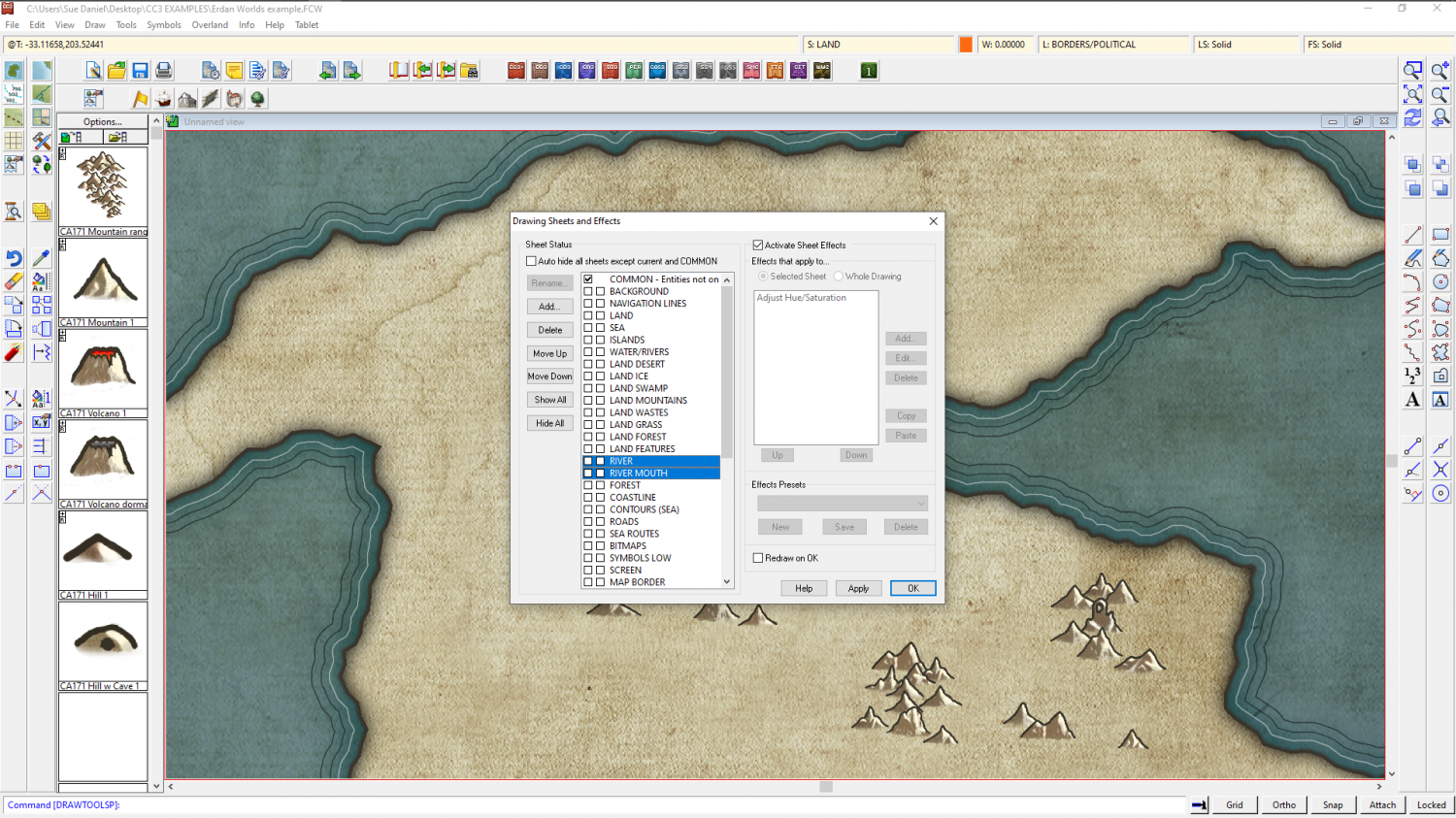
However, you will still have to conciously pick the right sheet between those two when you want to draw anything riverish, or everything will end up on the RIVER sheet.
I will let Ralf know.
As for the symbol size I couldn't say without seeing a screen shot of what you mean.
-
Installed CC3 on E drive, cant install CD or DD
You should basically give each installer a free reign and let it do what it wants at the end. Never uncheck the open app option if there is one. Just let it roll.

