


Loopysue
Loopysue
About
- Username
- Loopysue
- Joined
- Visits
- 10,354
- Last Active
- Roles
- Member, ProFantasy
- Points
- 10,103
- Birthday
- June 29, 1966
- Location
- Dorset, England, UK
- Real Name
- Sue Daniel (aka 'Mouse')
- Rank
- Cartographer
- Badges
- 27
Latest Images
-
Live Mapping: Gritty SciFi Blueprints
This week in live mapping, Ralf will be demonstrating the exciting new February annual issue style by Ute Gundacker: "Gritty SciFi Blueprints".
Come along and join us live on the day (date and time in the left margin)...
https://www.youtube.com/watch?v=VXne-ebRFwI
Or if you miss it, don't worry - all the live mapping sessions are recorded, and you can even watch it right here on the forum...
This thread isn't monitored during the show, but you can comment and ask questions below if you wish.



-
CA230 Gritty Sci-Fi Blueprints
It's really great work from Ute Gundacker. I hope I have time to play a bit soon.
-
How can I stop the program crashing when I choose Print Wizard
Since this is a universal problem rather than just one map, and trying the last update again didn't work, I recommend you ask for help from Tech Support, using the Support tab on your Profantasy Account page.
-
Desert planet
The export process is very flexible, so it may take a few tries to get what you want while you work out what all the controls do, and what all the templates look like - what and how much detail each one shows.
A couple of key points you may already have picked up:
- An export covers the area of your world that is showing in that moment, so if you want your whole world zoom to extents, and if you want just a region zoom to that region.
- Sometimes, if you pick a very high resolution the resulting map may be rather slow once you get it open in CC. We can cure that easily enough using explode to break apart any multipolies (polygons with holes in them that aren't editable), and then the keyboard command, SIMPLIFY, to reduce the number of nodes. Or if you don't feel like trying to marry up exploded multipolies once you've reduced the node count, you can try lowering the export resolution from FT instead.
There are several FT-related live mapping sessions that might be of use if you are a visual learner, or you can ask more specific questions here on the forum if there is anything that you can't solve.
-
Recently got a new computer, installed. Some tiles are black or plain boxes. Error?
Thanks :)
There's no actual error as such involved.
The template for this map is CA177, which is Darklands City.
When you add a House entity from a different style, like CA183 (Winter Village), the map lacks the bitmap fills it needs to fill the roof parts. The missing fills are replaced with solid colour polygons instead, which shows as dark grey and black in one building, and white in the other.
The reason the two black rectangles are slightly different shades is because they are two sides of a single roof which has been shaded so that the side facing the global sun direction is lighter.
If you draw a house in the default style for this template (CA177) you will see what I mean. In this shot I've increased the resolution so you can see the tile texture clearly, as your existing houses were quite large.
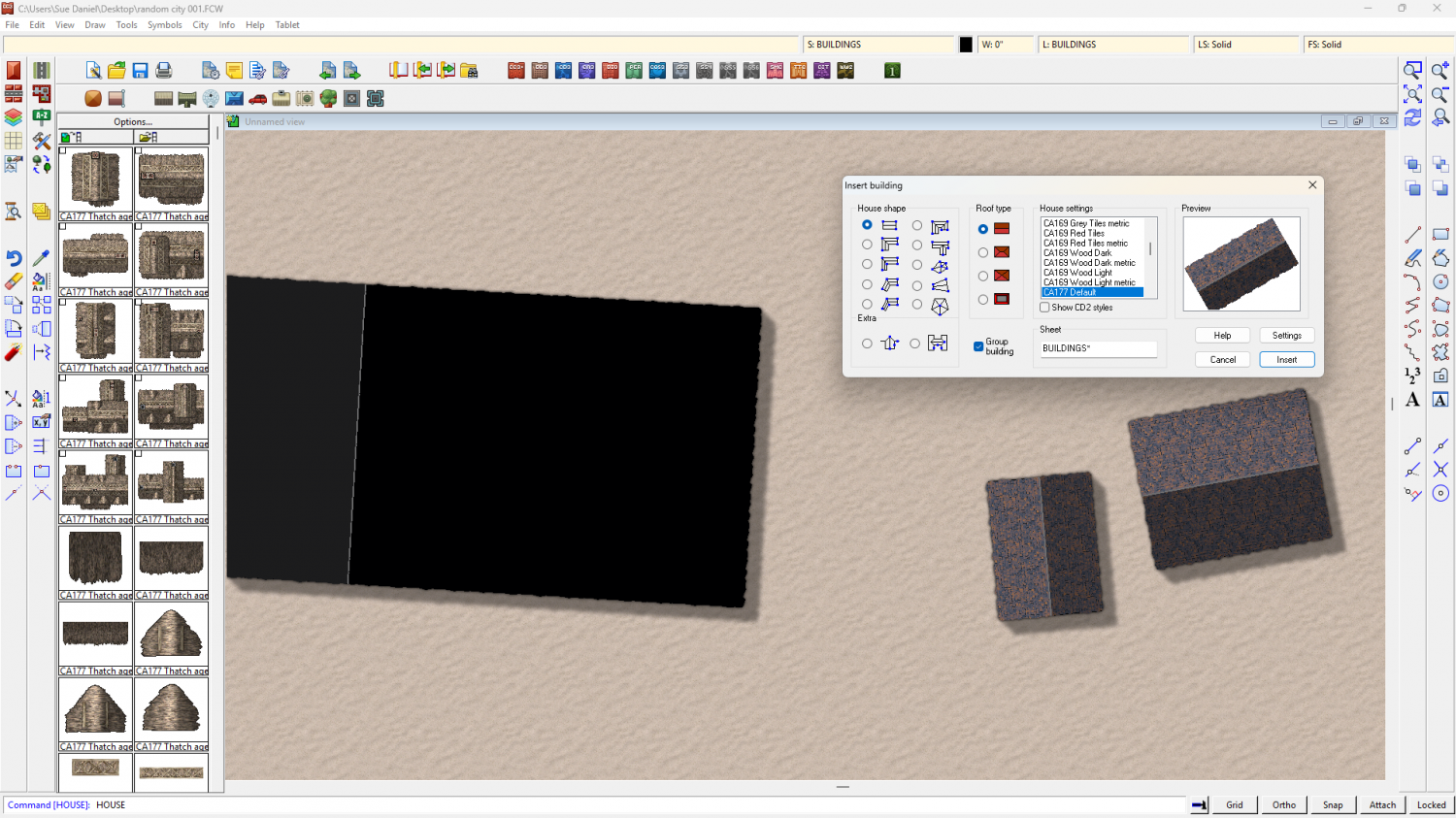
Although the ones you've already drawn can't be helped, you can draw CA183 houses in your CA177 map if you import the necessary fills.
First, create a new map in the CA183 style - a temporary map. The CA183 style template is called "Winter Village"
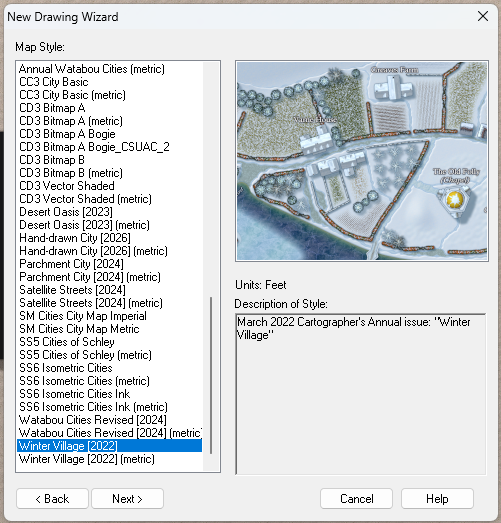
Then reopen the map you were working on and import the temporary Winter Village map into it using Draw, Insert file... Don't paste it, though. Just press escape. That will have imported all the necessary fills for you.
After that it will be possible to draw Winter Village House entities in your Darklands City map.
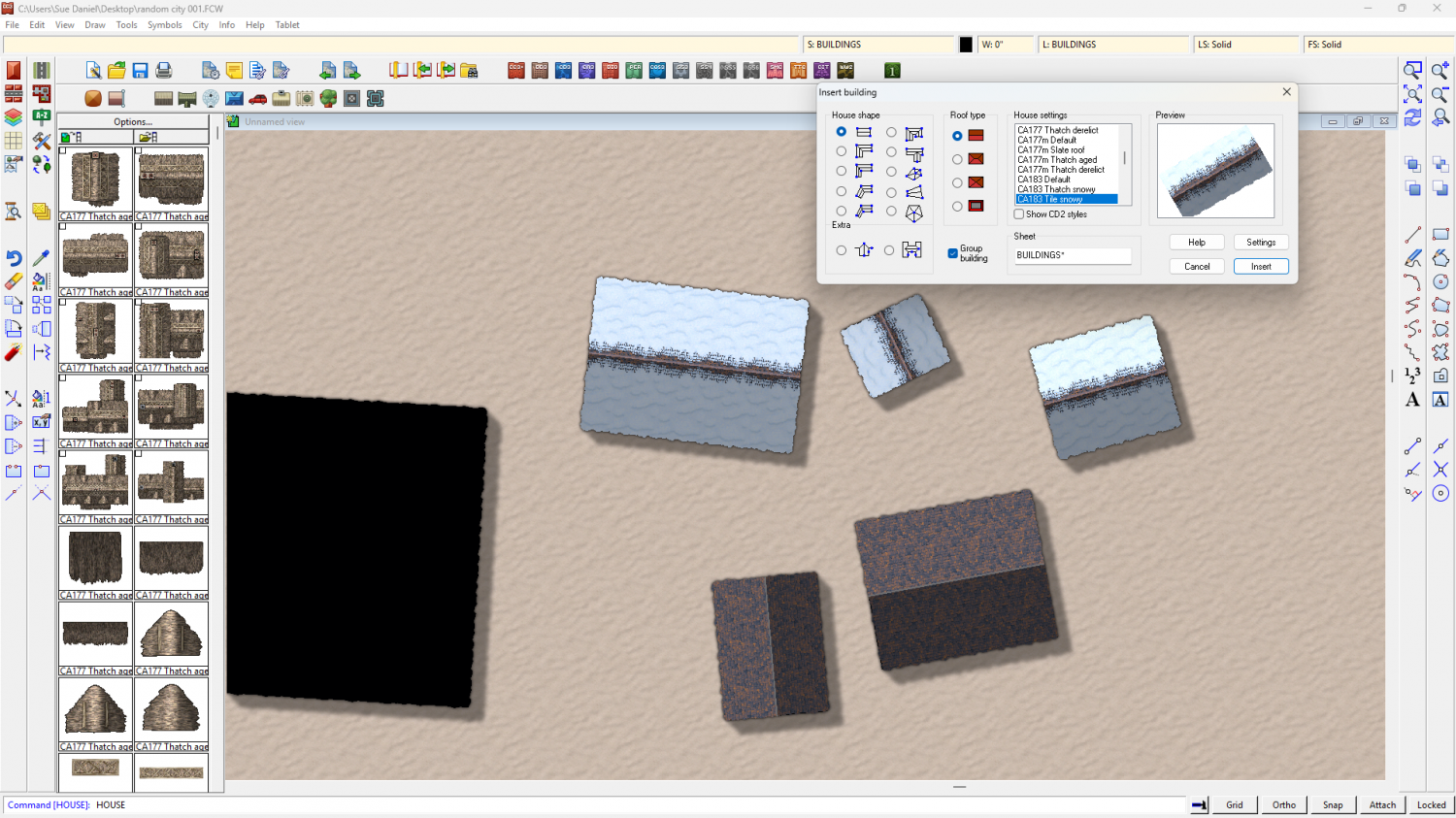
I've saved the version with the Winter Village fills here.




