Loopysue
Loopysue
About
- Username
- Loopysue
- Joined
- Visits
- 10,233
- Last Active
- Roles
- Member, ProFantasy
- Points
- 10,037
- Birthday
- June 29, 1966
- Location
- Dorset, England, UK
- Real Name
- Sue Daniel (aka 'Mouse')
- Rank
- Cartographer
- Badges
- 27
-
Misterious Land feature
You have Transparency Acne with the fills that are more or less identical to the Land texture bar some inking. That is where the render engine gets confused by pixels that are identical to the pixel on the underlying sheet and discounts it as being transparent. This creates a tiny 'hole' in the overlying polygon to which all the sheet effects are then applied the same way as they are to the outer edge. So from a percieved pinhole you get a very real edge-faded hole - acne.
There are a few different ways of dealing with it but the easiest one in this map is to use what I call a 'backing sheet', where you place a plain polygon underneath the top one by copying the problem polys and their sheet effects onto a new sheet between them both and changing the fill of the new polys to some solid colour that is sufficiently different to both textures that the render engine understands there are no holes in the topmost polygon.
I hope that makes sense.
I've created just such a backing sheet in this one for you:
-
Color key isn't working again
-
Battlemap collection for personal use
-
Live Mapping: Random Dungeons
Hi Everyone! :D
In Ralf's words: We've got a new cool tool in CC3+? Of course I need to take a look, check it out and let you watch in tomorrow's live mapping session.
Watch it live on YouTube and join in the chat here:
https://www.youtube.com/watch?v=IREi3GbsRAY
Or you can view it here if you prefer:
-
Creating a Template to simulate the Khorvaire Map
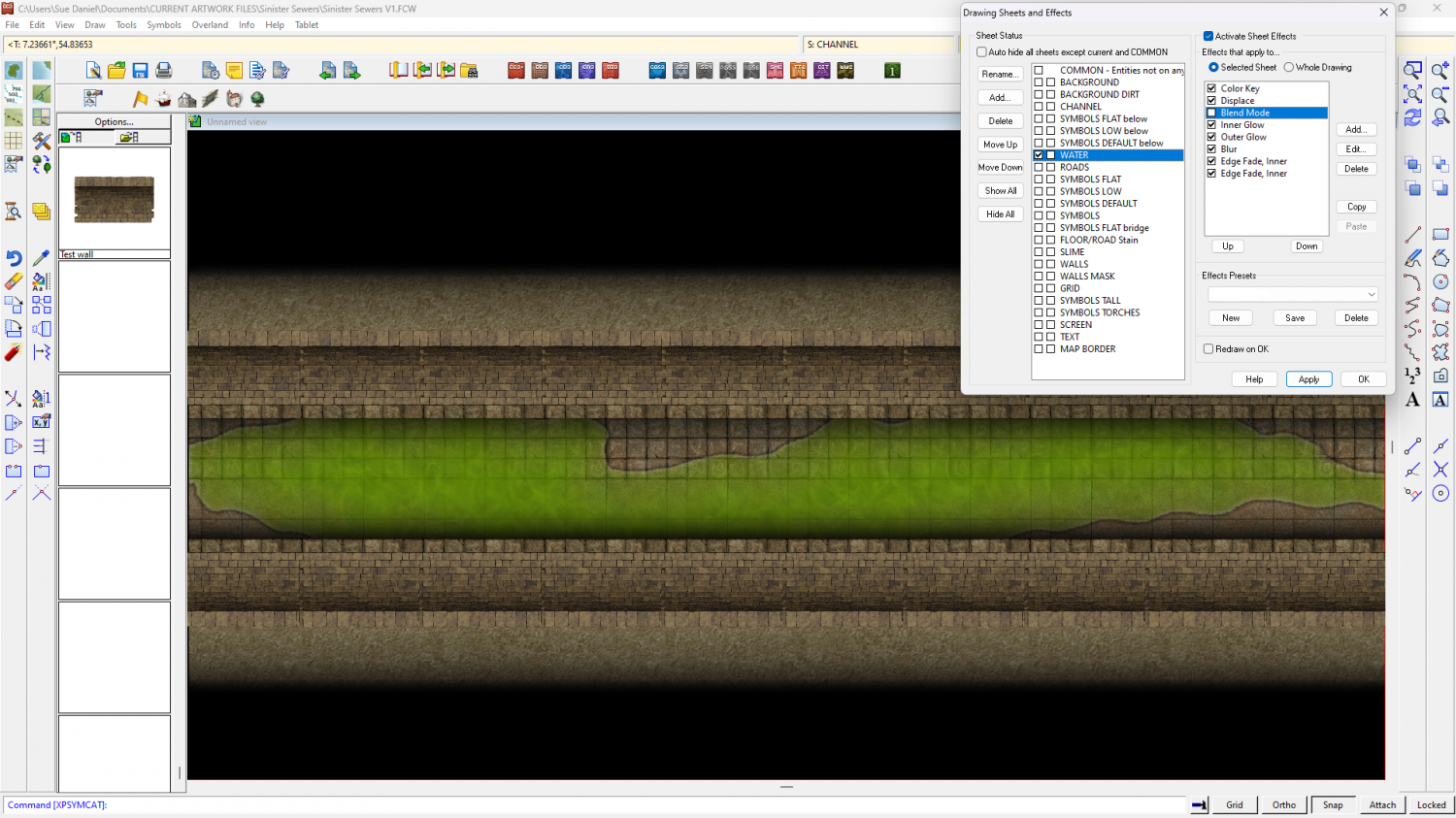
Don't start moving them, just yet, and check you have sheet effects turned on.
They're on the correct layer, though layers don't have anything to do with the way something appears on the map. It's the sheets and their effects that are more important.
When you move something like this it will create it's own new sheet if that named sheet didn't exist in the new map to start with, but it's created without any effects. Or, if the named sheet was already there it will have it's own effects that may not do quite the same thing.
Find out which sheet they are on by using List in the Info menu, then check the effects on that sheet. If there are any there delete them and copy the effects across from your older map using the copy and paste buttons to the right of the effects panel once you have highlighted them all. You will have to have both maps open at the same time to do that, but you can open the older map by double clicking its file icon without causing your new one to close.
EDIT: I notice that you have hidden the SCREEN. That leaves the bright green map border (the one that CC3 uses to define exports) visible around the edge. It might be a good idea to show the SCREEN sheet, but to use change properties on it to turn it solid white if you want there to be a white border around the edge as shown in your picture above. I think I froze the SCREEN layer that its on, so to work with it you will have to unfreeze the layer. Refreeze the SCREEN layer once you are done with it. Doing that will give you the white border without the green line.