


Loopysue
Loopysue
About
- Username
- Loopysue
- Joined
- Visits
- 10,413
- Last Active
- Roles
- Member, ProFantasy
- Points
- 10,161
- Birthday
- June 29, 1966
- Location
- Dorset, England, UK
- Real Name
- Sue Daniel (aka 'Mouse')
- Rank
- Cartographer
- Badges
- 27
Latest Images
-
Live Mapping: Banners and Seals
This week Ralf will be presenting the Banners & Seals symbol pack from the Cartographer's Annual 2021. As part of the process he will also be explaining catalogue settings and how to create them, so it is well worth coming along to see how it is done.
You can visit Youtube and book a reminder by clicking the link above.


-
world map made using trace technique
I quite like both maps :)

-
Issue with outlines after copy/pasting landmasses into larger map size
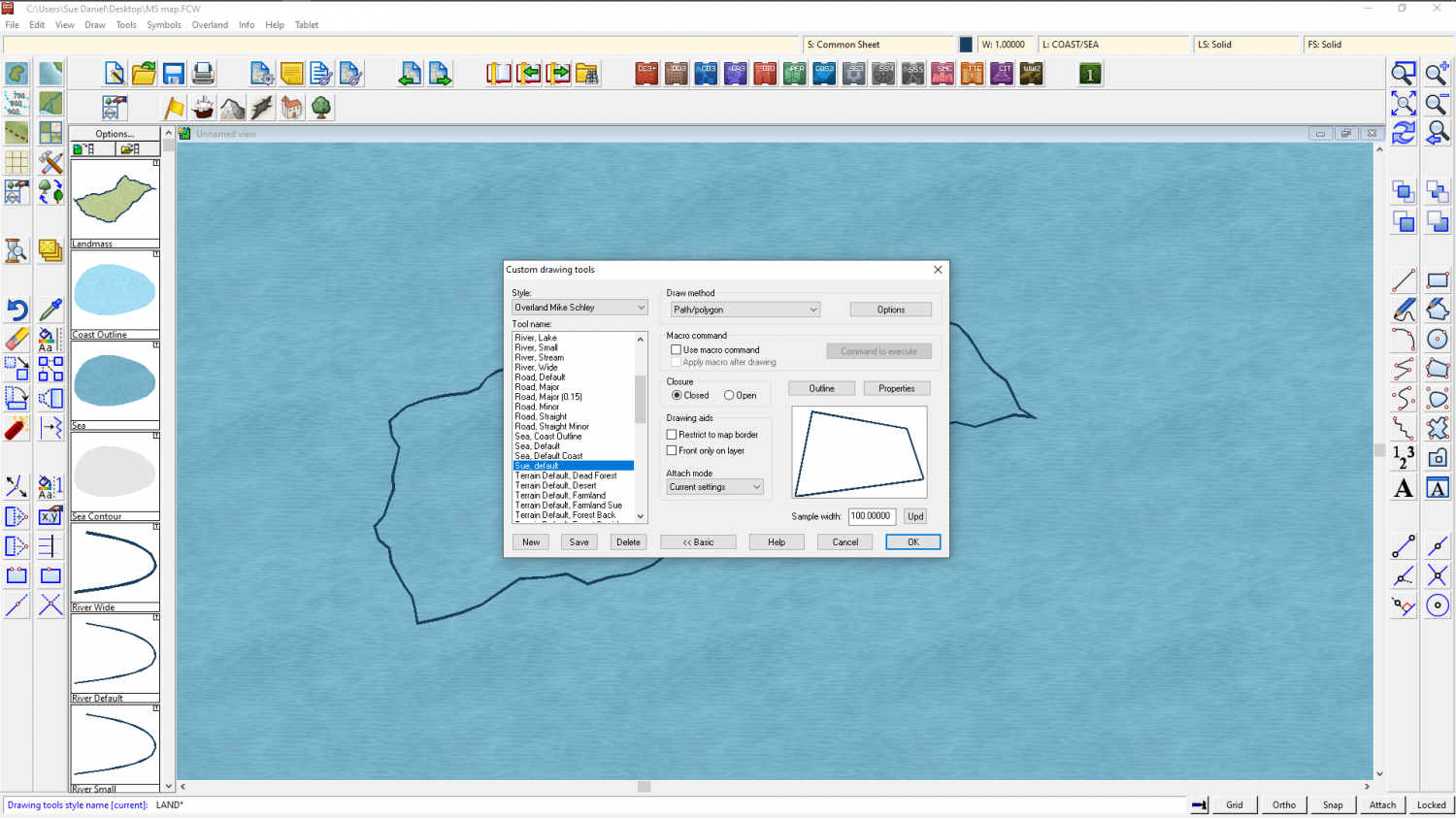
Here is a drawing tool I made for myself that uses all the current properties - layer, sheet, colour, fill, line width etc. It's just handy for the way I work, which is different for everyone. As you can see from the preview it's shown just like the coastline - the properties of which I picked with the Draw Like command.
This one isn't suitable for what you want to do because it only draws one polygon. I just wanted to show you that if you make a new tool and save it, that new tool will show up every time you use that template to make a new map in that style. It's a bit blurry for some reason, but the tool is called Sue, default. Only I have this tool because it is one I made for myself.

-
Issue with outlines after copy/pasting landmasses into larger map size
If you use the Draw Like tool in the Draw menu you can pick up the exact width of the line on the entity you prefer, and then modify the drawing tool. Here I have done this with the coastline, which is the only part of the entity that has a line width to be other than zero (the land automatically has to have a line width of zero to be filled). Then I have opened the drawing tool dialog and clicked Advanced. I've picked the Land, Default drawing tool, which draws both land and coastline, and then edited the Outline, which is the coastline entity of the two things this tool draws.
The properties of this Outline show how it is a "Fraction of the Map Border".
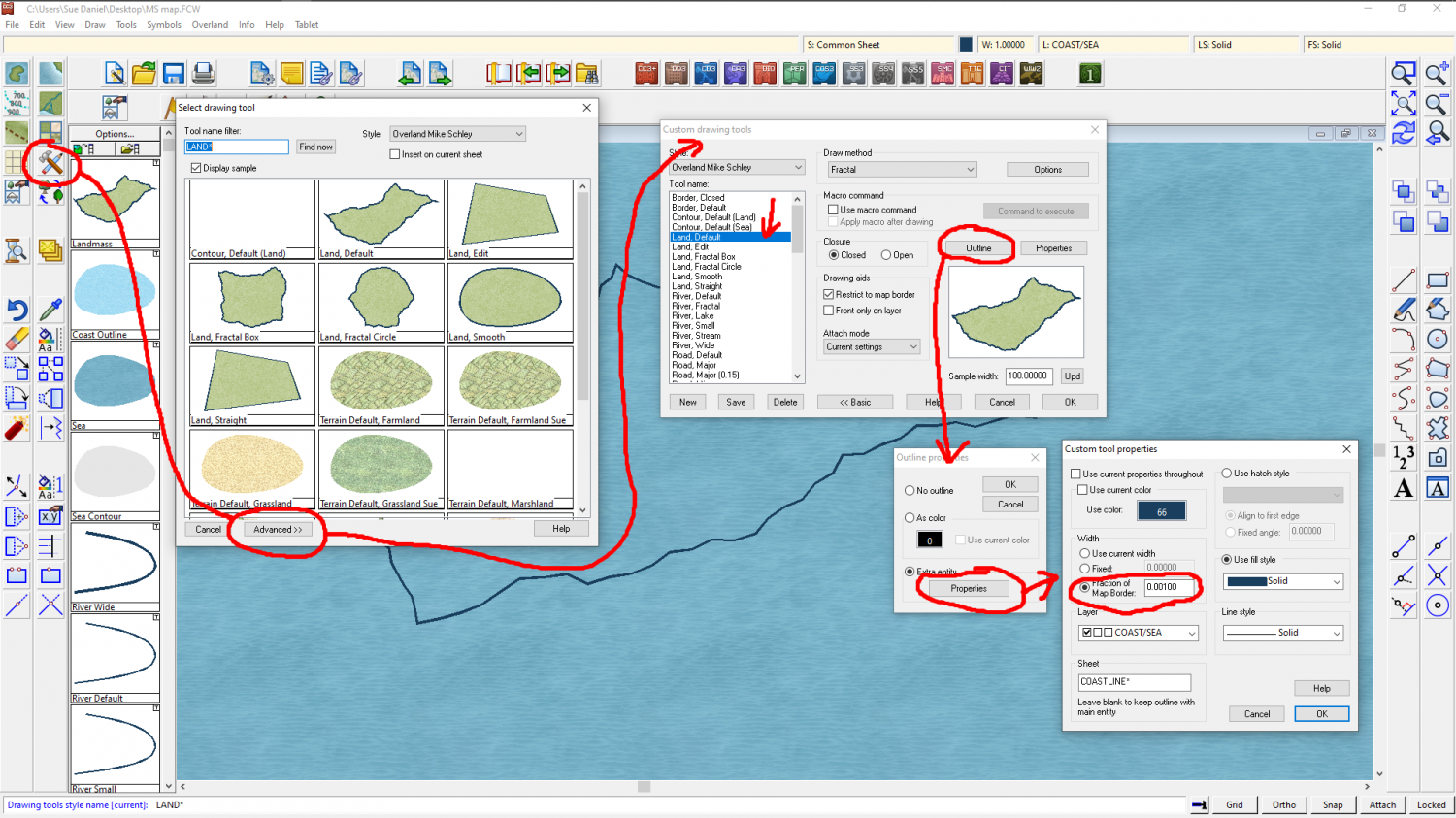
All I have to do to fix it at a certain width is to pick the option above that one. I set it to fixed and to the value of 1, which is the line width I previously picked up from the Draw Like command.
You don't need to save this change, but use the tool immediately.
If you want to save the tool it is better to go back two steps to the advanced dialog and click the new button - to make your own copy of it. This is because you are playing with the drawing tools that are part of the template, and any changes you save into the originals will be there until such a time as you change them again, or reinstall the software.
-
Issue with outlines after copy/pasting landmasses into larger map size
Yes.
Just make sure you hide all the other sheets first so you don't move anything you didn't want to move. Then pick the :CC2MOVE: tool, and select all the bits that you want to move and press D on your keyboard for do it.
Watch the command line. It will ask you for an origin point to start the move from. You need to click somewhere first to give it a 'move from point'. That gets a lot of people ;) While you are in the process of moving things the command line gives you useful hints about keyboard controls that will allow you to simultaneously rotate and scale the things you are moving. If you don't want to do any of that just keep your other hand off the keyboard. I've lost count of the number of times I've accidentally scaled and/or rotated something while moving it.
