


Loopysue
Loopysue
About
- Username
- Loopysue
- Joined
- Visits
- 10,413
- Last Active
- Roles
- Member, ProFantasy
- Points
- 10,161
- Birthday
- June 29, 1966
- Location
- Dorset, England, UK
- Real Name
- Sue Daniel (aka 'Mouse')
- Rank
- Cartographer
- Badges
- 27
Latest Images
-
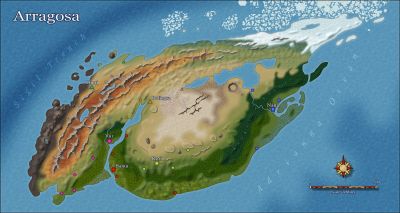
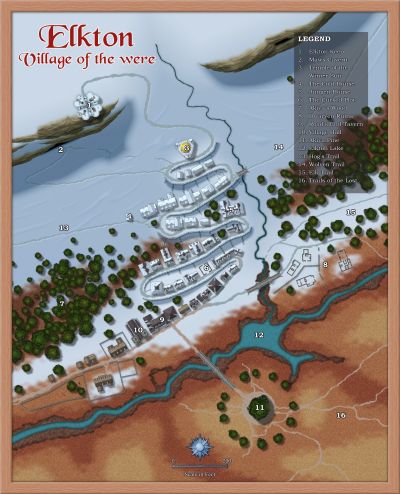
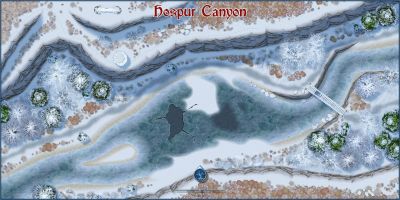
Frozen arctic lands
Maybe if you thin them out as they get closer to the snow line so you end up with a sort of edge fade, but done in tree symbols?

-
Western Baja California
The white screen can be hidden by hiding the SCREEN sheet, in the Sheets and Effects dialog.
You can show or hide any of the map parts by showing or hiding the sheet those parts are on. If you aren't sure what sheet something is on you can find out using List in the Info menu.
If you want to align the map with the scroll a bit better once you get rid of the screen, I would move the scroll rather than the map. You can do that using the Move tool |CC2MOVE|
-
Simulating a hand-drawn line
Or... you can use the freehand drawing tool on a sheet with a slight Displace effect, followed by a subtle Blur effect to knock off the edges. Give yourself a bit of a line width as well. No pen or pencil has zero nib width like a vector line.
Possibly the best psuedo-hand drawn lines I've seen are the ones that @Lillhans draws ;)

-
Tool control background fill color
You're welcome :)
Now click the :CC2PRESETS: button and then click the Attach to Drawing button in the dialog that appears and save the file.
We might never know how that happened, but if you get into making your own palettes in the future those top 2 rows must always be left as they are because they affect the colours of the interface.
In answer to your question - the default palette is used in the vast majority of templates, though there are a few styles that have their own variation of the palette, like the one I just showed you.


-
Edge fade inner - issue with my own modified textures.
One of my collegues suggested that you might be experiencing something we call Transparency Acne (TA). That is when the rendering engine produces holes in a texure that aren't really there because there is a single pixel somewhere that is identical in colour to the underlying pixel. The rendering engine will then apply the edge fade inner to that pinhole and cause a perfectly circular spot of transparency just like around the real edge of that polygon.
It is really difficult to tell for sure because the new textures are quite highly patterned, so a few round holes are not immediately obvious.
Are you using the snow dirt texture for both the road and the background? If you are, then you almost certainly have TA.
Normally I would describe how to add a separation sheet, but since you are making new textures quite easily it might be easier and less time consuming in the long run to do what I do when I'm making new textures, and try to ensure that each texture is a slightlly different colour. Where there is white in a texture that white might have to be a bluish white, or a pinkish white, for example.
If you don't feel like going that way, a separation sheet is exactly what it's name suggests. You add a new sheet just underneath the road and copy the road onto it. Then hide all the other sheets and change the properties of the new road on the new sheet to a solid colour that isn't likely to be in the snow dirt texture. A good one for avoiding existing colours is 227 - a deep purple.
Then you need to copy the edge fade inner to the new sheet, and will probably have to increase the width of the edge so that it doesn't show at the edges of the road.

