


Loopysue
Loopysue
About
- Username
- Loopysue
- Joined
- Visits
- 10,354
- Last Active
- Roles
- Member, ProFantasy
- Points
- 10,103
- Birthday
- June 29, 1966
- Location
- Dorset, England, UK
- Real Name
- Sue Daniel (aka 'Mouse')
- Rank
- Cartographer
- Badges
- 27
Latest Images
-
Extracting from Fractal Terrains 3 to Campaign Cartographer 3 issues
Ah yes, that will happen if the whole world has been exported. If you had exported it at a lower resolution the detail would be even less when zoomed in that far.
Here is a small group of islands on my FT world
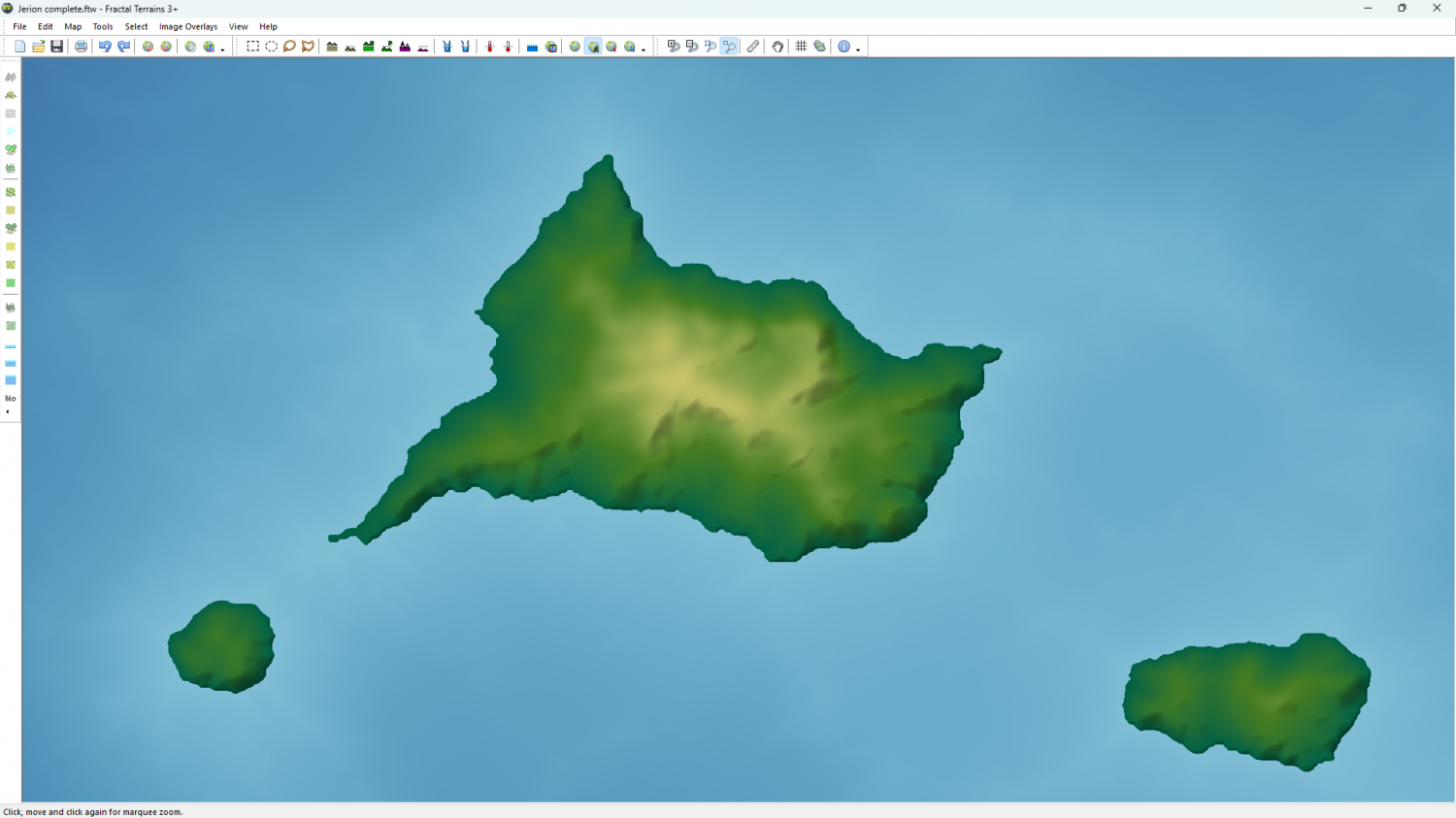
And here is the same group of islands on the CC3 map I exported yesterday (when I exported the entire world at Fine resolution).
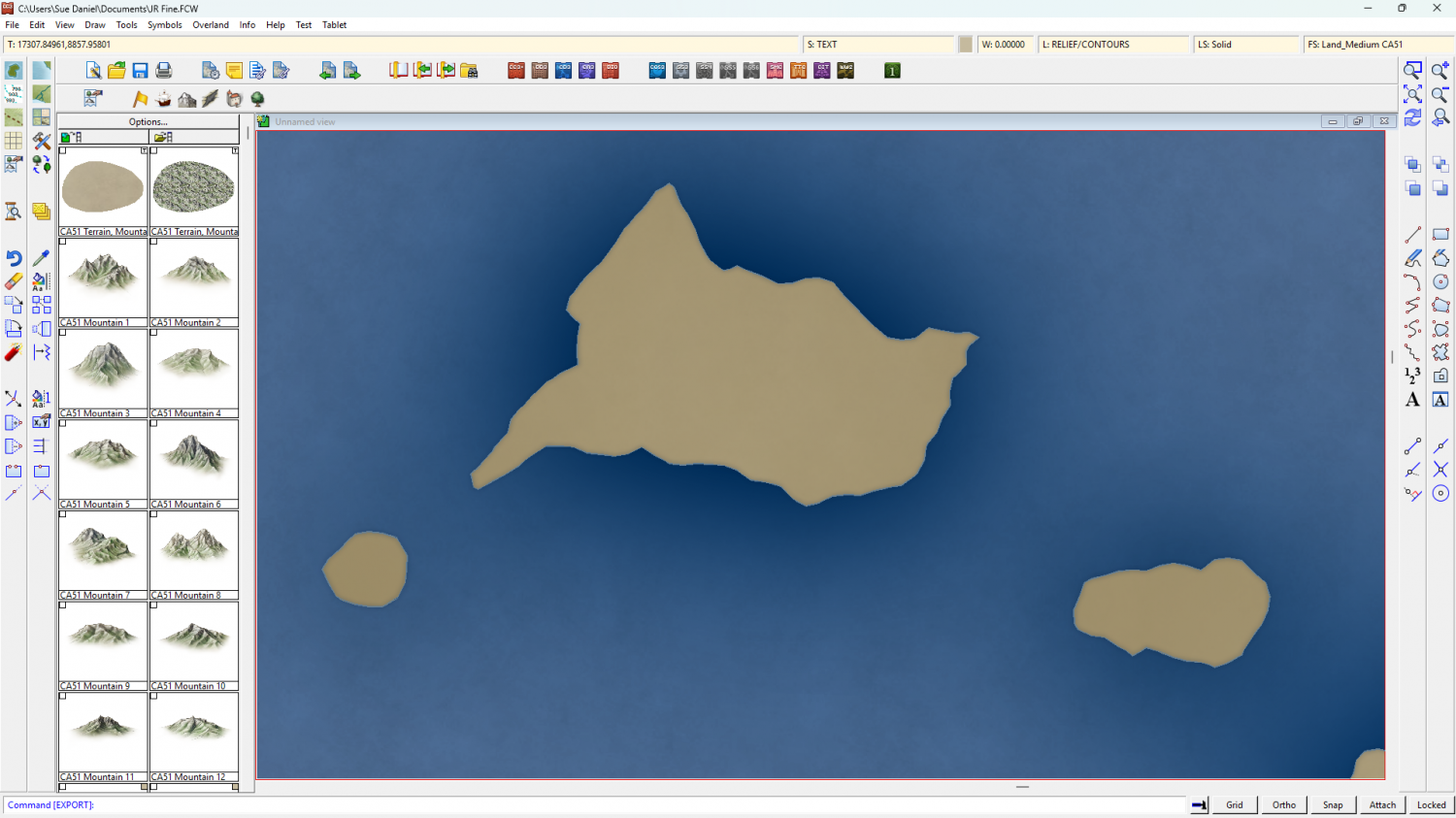
This level of detail is fine for the world map, where an excess of detail on every inch of coast would only serve to make the map incredibly slow in CC3, and would be completely unnecessary for the world map in any case, with most of the detail being wasted on our comparitively weak human eyes.
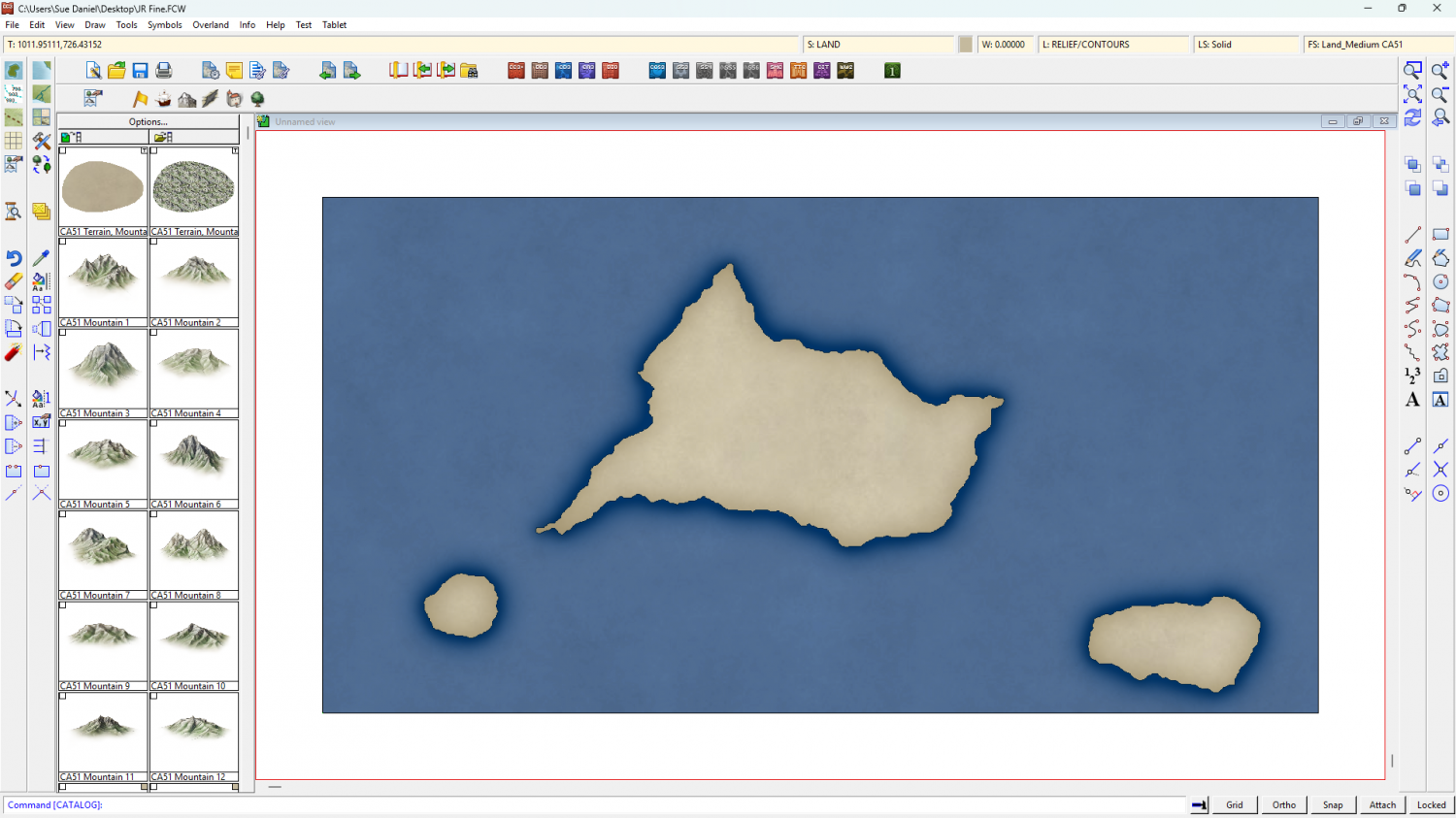
If you want a detailed map of the islands zoom in to the FT map and export again to create a regional map of that area using the same Fine resolution.
This is the result of exporting just those 3 islands from the FT map while I was zoomed in to them.

-
Creating Symbol Catalogs for New Style
I'm a little confused here. You say you are using existing symbols, and yet you are creating new folders?
You only need new folders if you are creating brand new symbols. The symbols can be used where they are if they are existing ones.
The Symbol Manager is the tool used to create new symbol catalaogues. You can't do it without the Symbol Manager.
The fastest and easiest way to create a new catalogue from existing symbols is to create a new file using the New Drawing Wizard. Pick the Symbol Catalogs group and "Pick a pre-defined template".
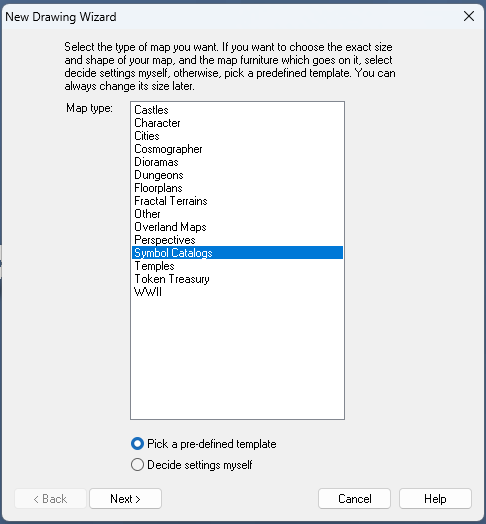
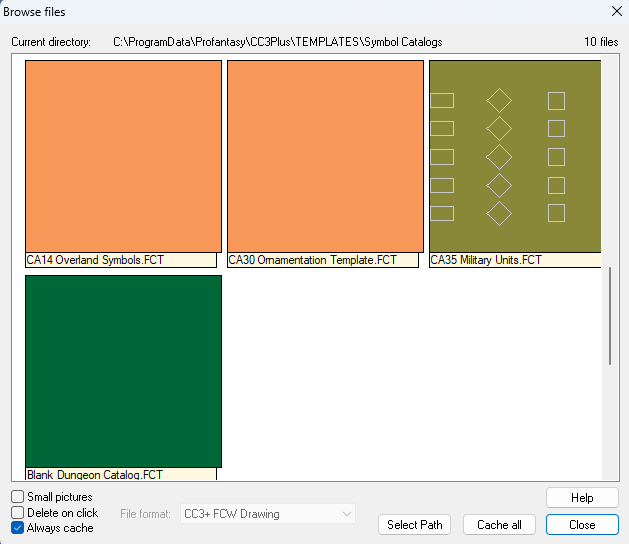
Hit Next, and pick the most appropriate catalogue type, though most of the time the simple Blank Dungeon Catalog.FCT will do.
Having created your new catalogue drawing, hit the folder button at the top of the symbol pane and find the catalogue containing the symbols you want. In this case I have decided to open the Creepy Crypts All.FSC, though I only want some of the symbols.
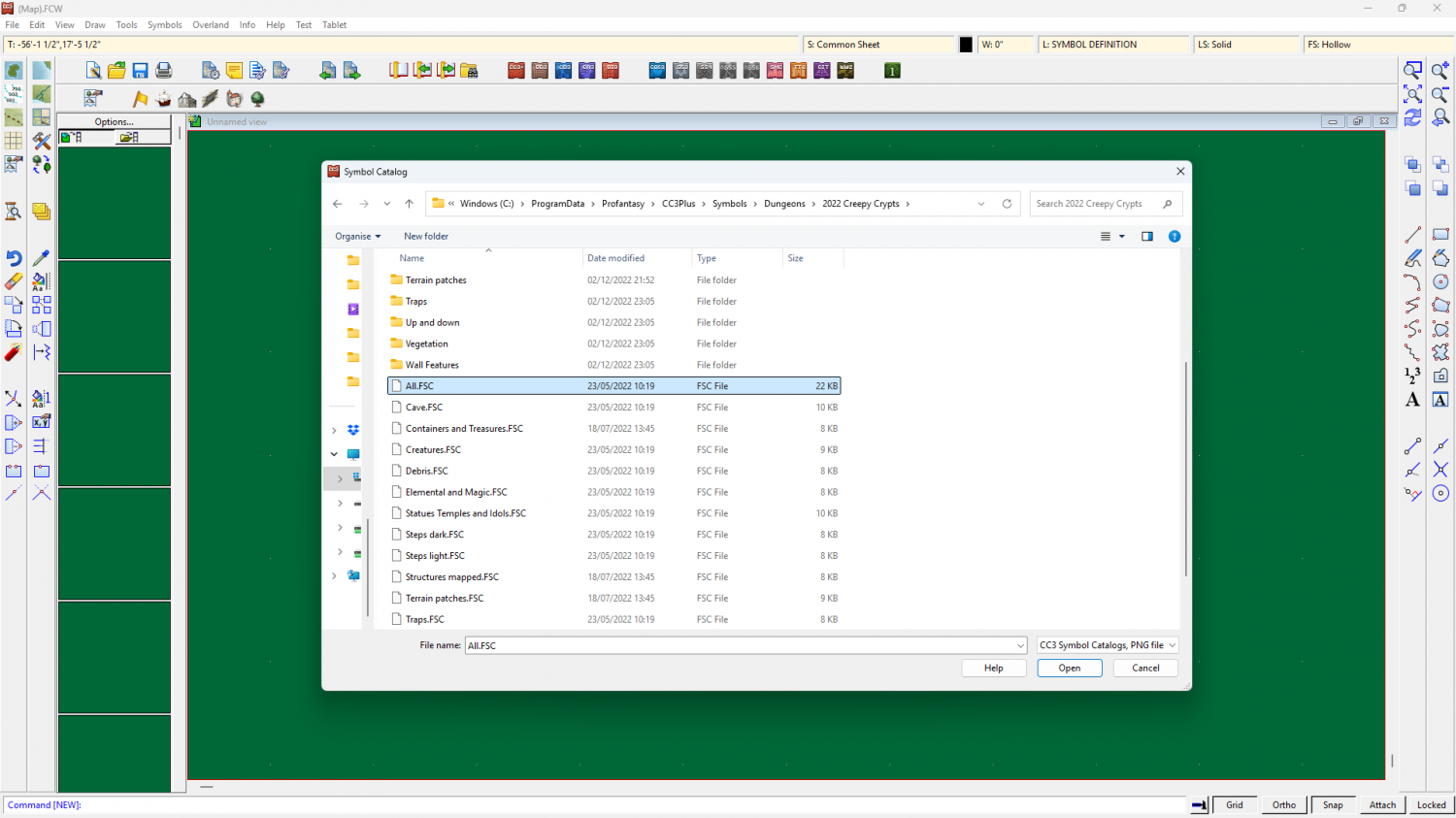
I only want the fungi from this style, so I expand the fungi collections and click them one at a time as if to paste them (but don't paste them).
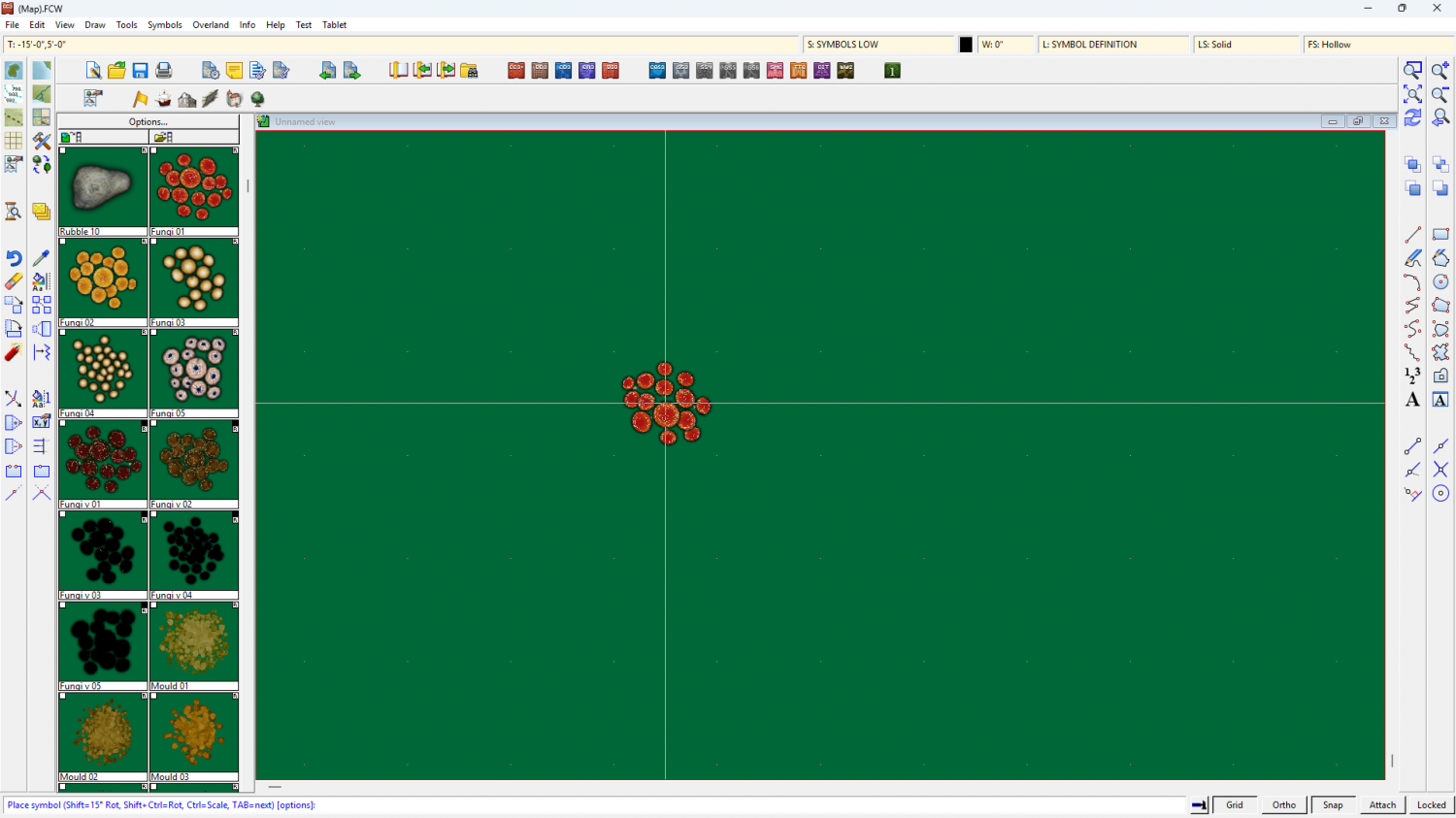
Once I've done that if I then open the symbol manager I can see that I have all the fungi symbols from Creepy Crypts in the drawing, but none of the rest of the Creepy Crypts symbols.
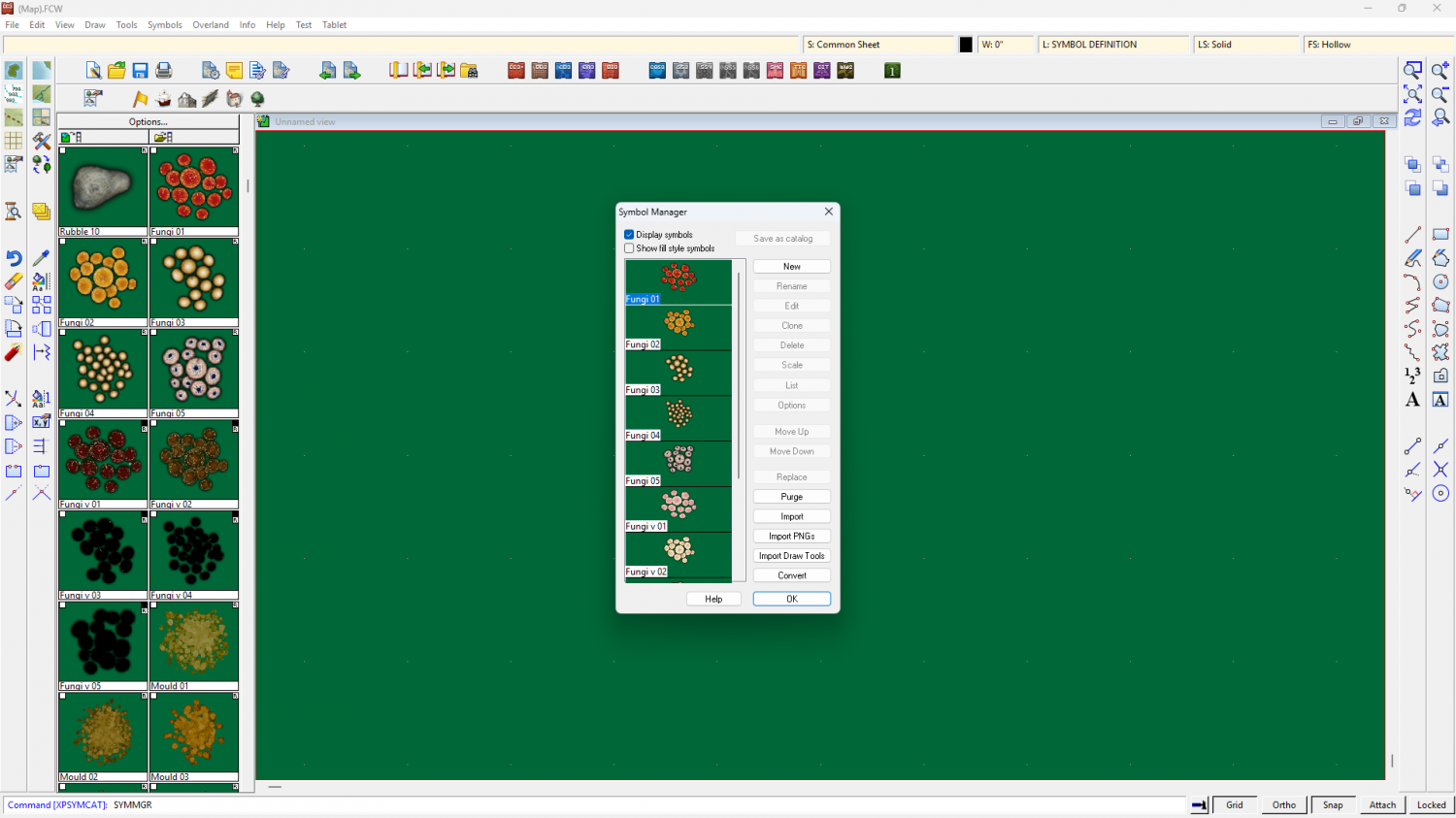
I can then open another catalogue from a different style and add symbols from there the same way, and build my own list of symbols in map, which will appear in the Symbol Manager.
Once I've finished adding the symbols I can then open the Symbol Manager again and select all the symbols in the Symbol Catalogue and use the Save as catalogue button at the top to make my new mixed style catalogue.
I recommend saving the catalogue in the parent folder of the basic style type. For instance, if I have a catalogue of mixed dungeon styles I would save it as "Mixed Dungeon SD.FSC" in the Dungeon folder.
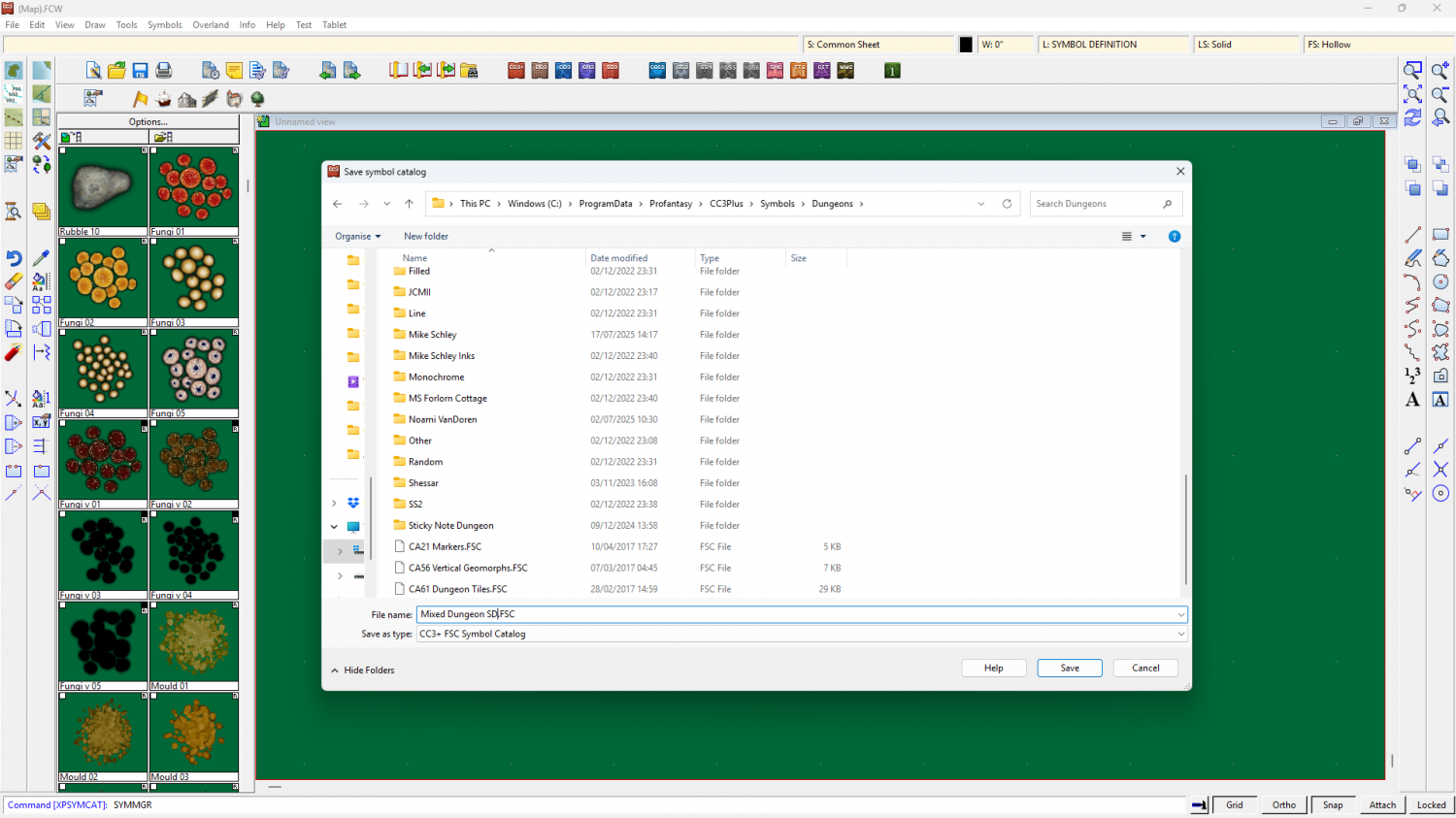
Once the catalogue is saved you can discard the drawing you were using without saving it. You have the FSC you wanted, and if you need to add more you just open the FSC file.
It's a little confusing, I have to admit, but once you get your head wrapped around it not that difficult to make your own personalised catalogue files from existing symbols without creating dozens of new folders and duplicated symbols.
As for the next stage - attaching the new catalogue to a button - I once knew how to do this but for the life of me I can't remember the process. Maybe others can help with that.




-
CC4 Overland Development Thread
Thanks Mike :)
I think they call that rebound in some cases where the ejected material rebounds from the walls of the crater as it is formed and ends up stacked back in the middle. Sometimes I think it's where harder rocks underly softer rocks so you get a smaller crater inside a much larger one. I'm only interested in geology, though, and not a geologist, or a geomorphologist, or whatever you have to be to understand that particular type of physics.


-
Too early for a CC4 wishlist thread, or is it timely?
Maybe these would be some help?

-
Too early for a CC4 wishlist thread, or is it timely?
You can pan by holding down the mouse wheel and dragging.

