


Loopysue
Loopysue
About
- Username
- Loopysue
- Joined
- Visits
- 10,413
- Last Active
- Roles
- Member, ProFantasy
- Points
- 10,161
- Birthday
- June 29, 1966
- Location
- Dorset, England, UK
- Real Name
- Sue Daniel (aka 'Mouse')
- Rank
- Cartographer
- Badges
- 27
Latest Images
-
Cavern Symbols - Stalactites/Waterfalls
If you search for stalagmite in the C:\ProgramData\Profantasy\CC3Plus\Symbols folder, you might come up with a few. That will give you the location, and therefore the style. There aren't that many, but there are a few.
Same for waterfalls.
It really depends on which parts of the full set you haven't got.

-
Pencil Sketch Overland
That was the drawback. Krita works well and gives good results, but it takes a couple of days to get used to it.
This video covers the basics in Krita, though you have to use your imagination to see how it can be applied to the kind of tiles we make.
I recommend using tiles that are 1-2000 pixels square, rather than the smaller size demonstrated in the video. Use larger tiles when the pattern is something large, like rocks (when the repeat becomes rather more obvious on smaller tiles), and smaller tiles where the pattern is something fine grained, like sand or grass.
-
Pencil Sketch Overland
Krita is better quality, but if you are happy with the GIMP version that's fine.
-
fill style locations
You should be able to import the one you want by creating a new and temporary Mike Schley overland map, and then importing that dummy map into your own map - pressing the ESC key just before you actually paste it.
That will cause any missing Mike Schley fills to be imported, even though you never actually pasted the dummy map.
Doing it that way will also automatically scale the fill correctly for you.
Once you have imported the fills you can switch to the "Overland Mike Schley" drawing tools in the dropbox at the top of the drawing tool dialog and grab the correct drawing tool for the farmland.
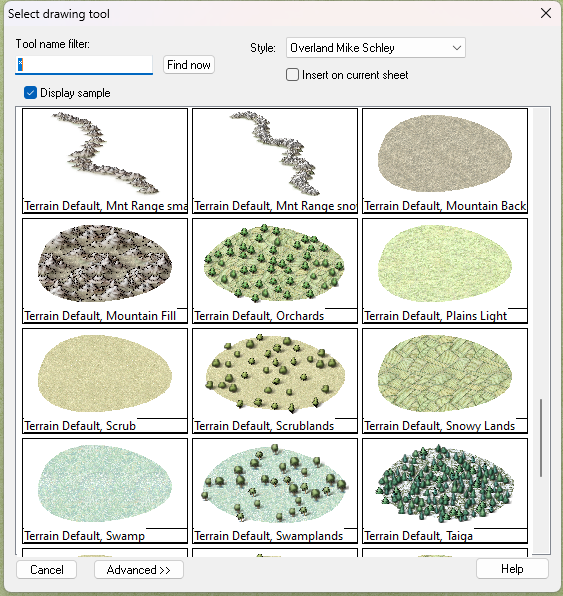
EDIT: although looking at the names in my drawing tool list there seems to be a bit of a mix up on my system at the moment. I'm sure yours will be fine.
-
Pencil Sketch Overland
If you don't mind having to learn a new app, there's a free bitmap editor called Krita that can help with the seamless tiles. I once used it to draw all the seamless tiles in the Ferraris Style, but I've forgotten a lot of how to use it these days.
Basically, you open or create your square tile and press SHIFT+W for the tiled view, and then you can draw on it right across the tiled view disregarding the edges.
I wish more bitmap editors provided seamless tools.


