


Loopysue
Loopysue
About
- Username
- Loopysue
- Joined
- Visits
- 10,354
- Last Active
- Roles
- Member, ProFantasy
- Points
- 10,104
- Birthday
- June 29, 1966
- Location
- Dorset, England, UK
- Real Name
- Sue Daniel (aka 'Mouse')
- Rank
- Cartographer
- Badges
- 27
Latest Images
-
Having a lot of difficulty selecting a single entity on my map
I use these two keys a lot:
SHIFT - hold down SHIFT to select more than one by clicking each one in succession while holding the key.
CTRL - same as SHIFT, but it allows you to deselect individual items from the selection.

-
[FT3] adding an archipelago to a map
Hi junelac :)
Yes, you can sculpt more or less land into an existing FT3 world. I recommend opening the World Settings dialog, going to the Editing tab and checking the custom resolution box to set it up a bit like this. Any value you prefer in the box, though bear in mind that lower values will make editing clunky, while higher values will make the file rather big. Anything between about 4000 and the maximum, which is 8190, is better than the default.
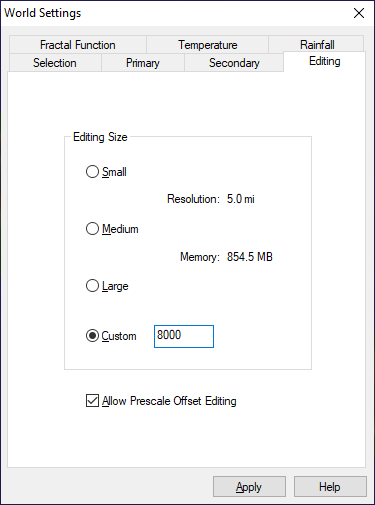
Then make sure you have checked the Allow Prescale Offset Editing box at the bottom there, and click Apply before you shut the dialog.
After that, use the green prescale offset brushes, and make them plenty large with an extremely low power in the tool settings. By low I mean in the range of about 0.005 to 0.01. Then dab the area you want to raise or lower until you get it right.
Editing an FT3 world is easier if you don't have the Continental Shelves checked on the Secondary tab.
Whenever you change anything in this dialog remember to click Apply immediately afterwards, or your changes will not be applied.

-
Missing bitmap fills for Annual Vol 3
It's a bit hard for me to tell what is included with what, since I now have all the products anyway, but try hiding all the rest of the sheets and using Info->List on that polygon full of red Xs. See where CC3 is looking for the fill. Then you can find out if that folder exists on your system and if it does if the fill is inside it.
If things are missing contact Tech Support and explain the problem. As I said earlier - you bought the annual, so the fills it uses should be included.

-
Fill styles arent being selected automatically. Bitmap has to be added manually. How do I fix this?
You have the Jon Roberts drawing tools, but the fills I can see in your map and the symbols are DD3. These are different styles.
While it is perfectly fine to mix styles there are a few issues you might encounter along the way. To solve the most likely ones...
- If you don't have the right drawing tools for the style open the drawing tool dialog and where it says CD3 Floorplan DD3 in the dropbox at the top in your last screen shot there, click the down arrow and pick the right style.
- If you don't have the right fills for the style you want to use, create a dummy file of the desired style and use Import file in the Draw menu to import the dummy file into your current map, but abort the operation just before you paste the temporary file into the one you are working on. This will import the bitmap fills into your map without pasting any other irrelevant stuff.
- If you don't have the right symbols you can navigate to the right symbol catalogue using the folder button at the top of the symbol catalogue pane. Be careful to open the catalogue file and not the actual folder containing the symbols. Catalogue files are .FSC files.
I hope that helps ?


-
Seeking advice/tips re: world mapping with FT3/Wilbur
I would recommend sculpting a world from scratch if you have enough time. It's much less of a One Day Worldbuilder that way, but you have much more control over where the land and mountains are. The example world Helena is a hand sculpted world done that way. The other two examples started with a synthetic world, and if you look at the initial file you can see that it strongly influenced my sculpting.
However, if you find a synthetic world that matches your needs pretty well there is no reason to start from scratch when you can use that one. A word of warning here, though, which I should probably have put in the tutorial - continental shelves make things awkward, so if you use a synthetic world chose one that has been generated without continental shelves.
General advice: the process is a whole lot easier if you try to restrict yourself to using only the prescale offset brushes as described in The One Day Worldbuilder. Using other brushes tends to do rather a lot more damage to the underlying fractal.
![[Deleted User]](https://secure.gravatar.com/avatar/c75d9a245b74d9c59be0999ea81ca541/?default=https%3A%2F%2Fvanillicon.com%2F92add7f8c954488718110edc4896ad39_200.png&rating=g&size=200)
