


Loopysue
Loopysue
About
- Username
- Loopysue
- Joined
- Visits
- 10,413
- Last Active
- Roles
- Member, ProFantasy
- Points
- 10,161
- Birthday
- June 29, 1966
- Location
- Dorset, England, UK
- Real Name
- Sue Daniel (aka 'Mouse')
- Rank
- Cartographer
- Badges
- 27
Latest Images
-
Hill Outlining
If you make a set of marks that are separate symbols, and import them using the Symbol Manager, then make a catalogue of them, you can use Symbols Along... in the Draw menu. However, the way Mike draws his hills by hand is going to be difficult to emulate even then. You might have to edit the actual placing of those line symbols just a little once they are there.

-
Marine Dungeon - a Cartographer's Annual development thread
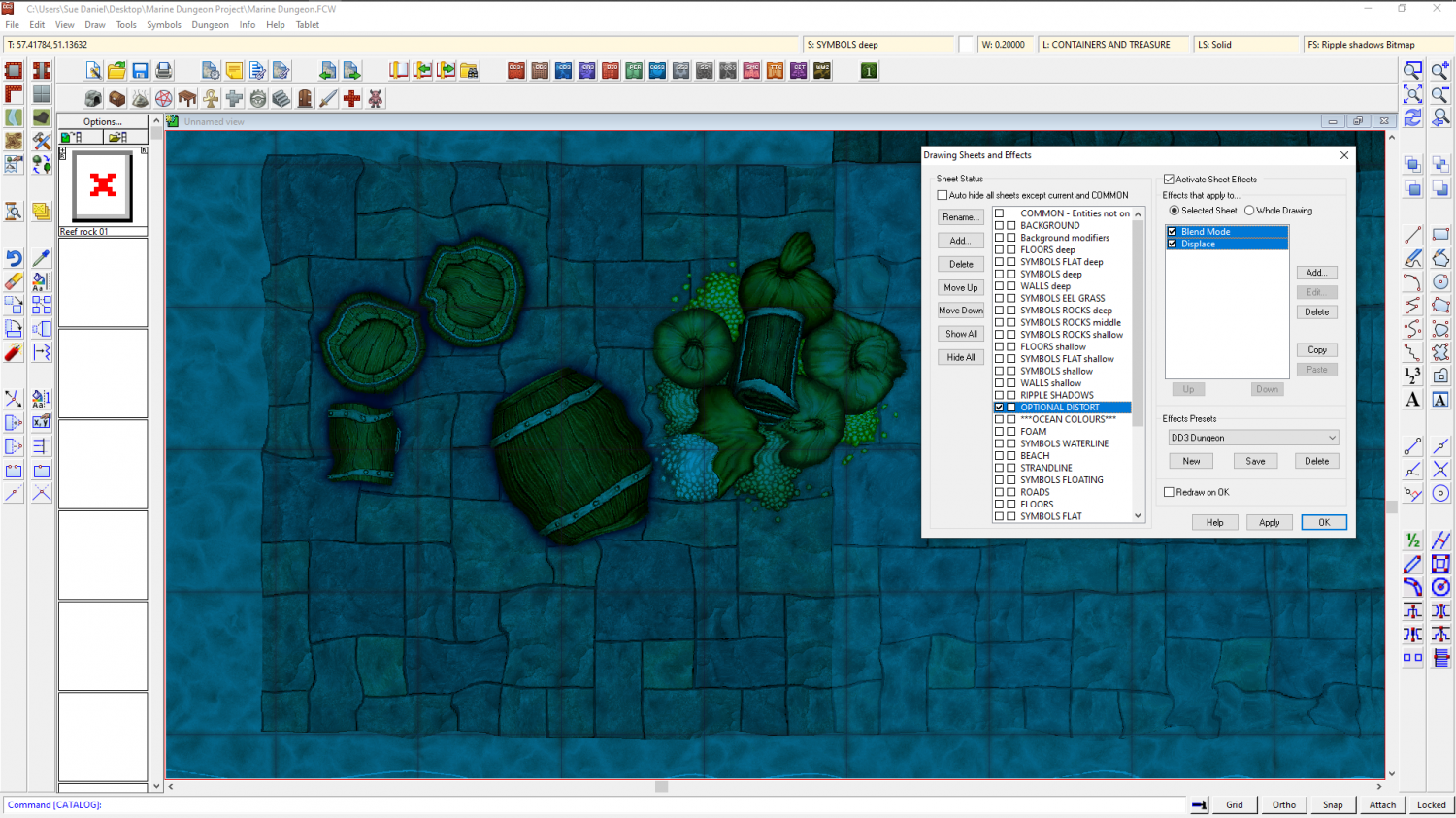
Distort has been possible for at least 5 years. All I did was work out how to affect the whole map by adding the effect to just the one sheet, called OPTIONAL DISTORT. The distort is optional because it doesn't make reading the map all that easy. It's more of an artistic effect.
A rectangle of transparent white that covers the map on the OPTIONAL DISTORT sheet is multiplied (Blend mode sheet effect) to the result of the render so far. The Distort effect is then applied. The white of the rectangle itself is no longer visible thanks to the multiply effect (which removes all the white on it's own sheet) but those other colours it has been blended to are treated as part of the white rectangle and distorted by the following Distort effect.
Blend and Distort. Just two effects in that order.
The only thing you need to be careful about is making sure that all your backgrounds and anything that vanishes off the edge of the map extend as far beyond the edge of the map as the distort is set to act, or you get the edges of things pulled back into the map by the distort.



-
How Do I Trim 2 Polygons?
If the shapes are on the same sheet just add the transparency effect. It is applied to the sheet, rather than to individual polygons, so you won't be able to see the overlap.
If these shapes are on different sheets, and if they are only ever to have a transparency applied and no other sheet effects, the easiest way is probably to add a Colour Key effect to the sheet with the pale green polygon on it, and then copy the dark green polygon onto that sheet and use Change Properties to turn the copy solid colour and magenta (the colour of the colour key). This will cut the precise shape out of the pale green polygon.
If you mean to have these polygons on separate sheets and with sheet effects like Edge Fade, Inner applied, then things could be a little more complicated, but still it shouldn't be necessary to actually trim anything at all.

-
Marine Dungeon - a Cartographer's Annual development thread
@amerigoV - Thank you. I will have a look at that when I get back to the map. Stand alone shadows can be drawn as polygons, or cast by the drop shadow sheet effect.
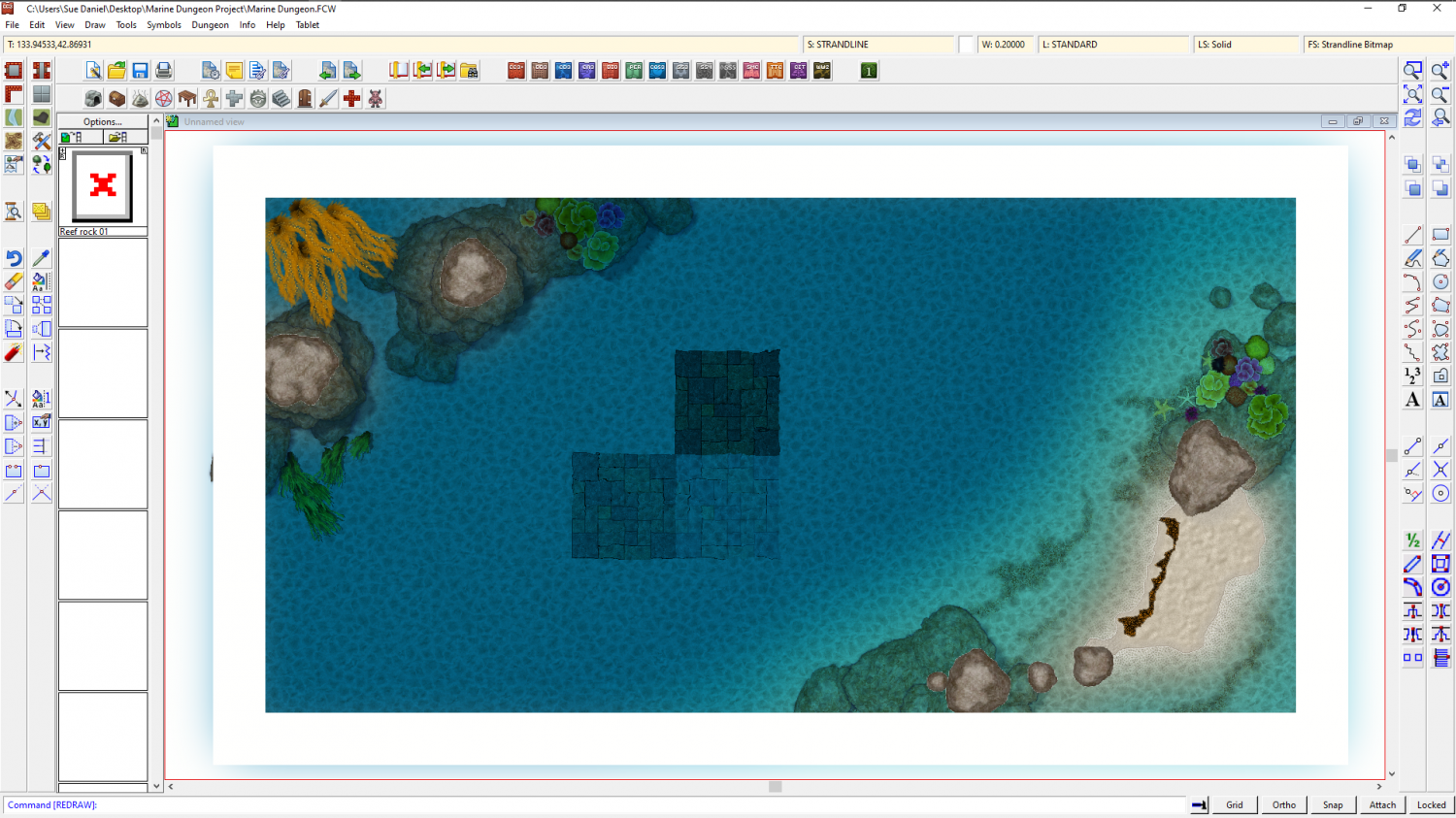
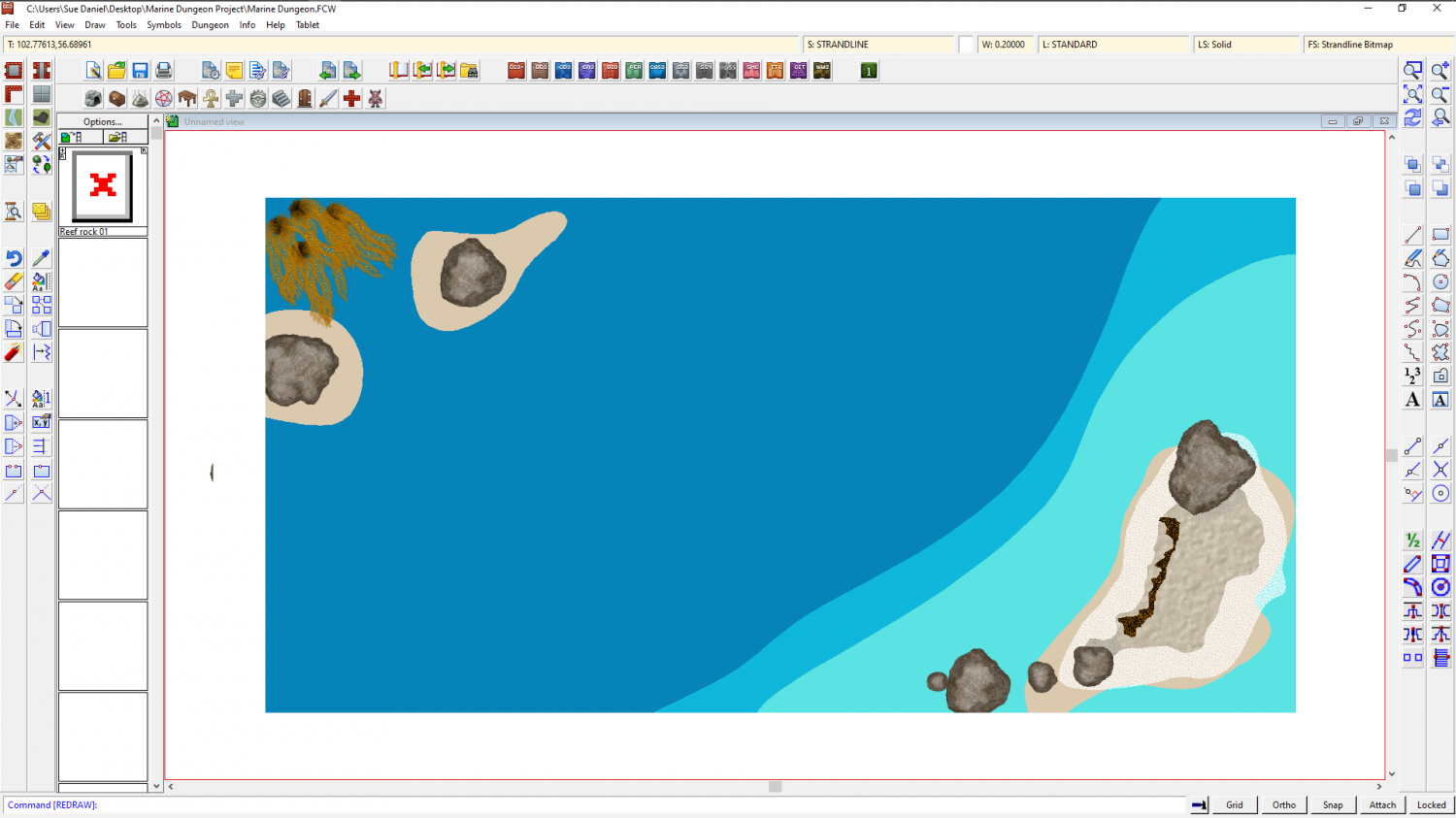
@George - Thank you very much. In truth all I did was adjust the colour palette and a few of the sheet effects. You would be shocked if you saw this map with effects turned off.
-
Too early for a CC4 wishlist thread, or is it timely?
@ArgoForg - On point 3, you can use Resize Drawing Area in the File menu right now if that is still an issue for a map you are working on.
