
Shessar
Shessar
About
- Username
- Shessar
- Joined
- Visits
- 304
- Last Active
- Roles
- Member
- Points
- 1,225
- Rank
- Mapmaker
- Badges
- 13
Latest Images
Reactions
-
Dungeon Level Symbols - Celtic Revival Room by Room
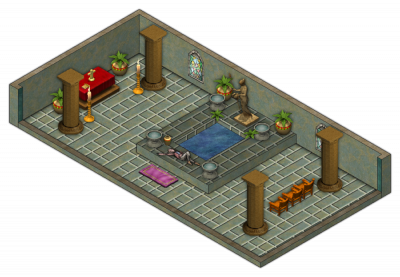
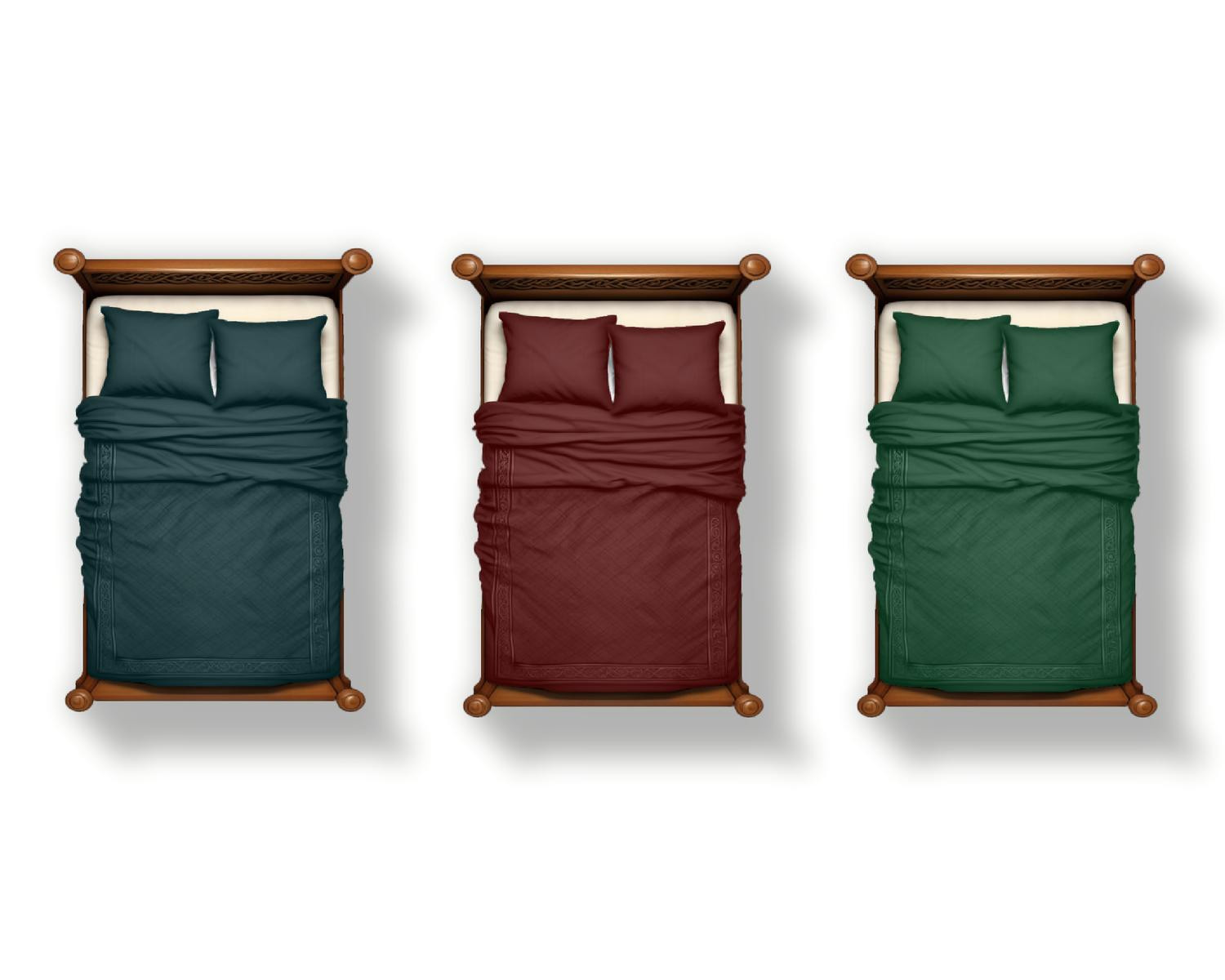
Glad you like them! And these are the kinds of ideas that I need. All of them may not make it in, but the more ideas I get of what might be useful, the more complete the symbol set will be.
As for vari-colored symbols looking washed out, the key is to use the darkest colors. My preferred is to not go passed the forth color on the left. You get much richer colors that way. Compare the image in the post above, which used the colors in the mid range, to these.






-
Aerdyn Continental Map WIP
We call that transparency acne.
Sometimes when the pixels in an overlying texture are the same color as the pixels in the underlying texture, and there is a glow, edge fade, inner, or bevel of either type on the overlying texture's sheet, the rendering engine gets confused and fails to recognize there's anything there on the overlying sheet. So it's read as a pinhole exactly one pixel in dimension. That's why the holes are all the same size.
I have noticed that this is quite frequent with when all the fills have coloring in the various terrain fills..
Place a new sheet with nothing on it between those two sheets which does sometimes work, or if it doesn't, copy the top polygons onto that new sheet along with the sheet effects. That can also sometimes work without further effort. If that doesn't work either, try changing the fills of the new copy polygons to Solid, and a color that isn't in either texture. If you have to go that far you may need to increase the width of the edge fade to make sure it doesn't show through.

-
Compass Roses
@Simon Rogers I draw them by hand, scan them, use photoshop for coloration, then upload them to several AI image to image generators until I get something that resembles my original hand sketch. Then back to photoshop to clean up the AI sloppiness.

-
Need some help fixing an old map
Hello! I've converted many, many maps from CC2 to CC3 over the years. It can be tricky at times. Here's how to fix this one....
- Open Symbols>Symbol Manager
- Scroll down and click to select the Room Circle 1' symbol.
- Click on edit then draw a bounding box across your screen. This opens the symbol in the editor.
- Now Select Send to Back on the right hand button bar.
- Right click within the editor window and select layer
- Choose the walls layer, click OK, then Do it.
- Close the editing window via the x to close and say yes to save.
You should be good to go. Give a shout here if you don't understand something.

-
Recommendation for SS6
This is not a bug per say, but a highly recommended change: Have the Roof Frills go on their own Sheet so that when you sort the symbols, they don't all end up under the buildings.