KertDawg
KertDawg
About
- Username
- KertDawg
- Joined
- Visits
- 4,759
- Last Active
- Roles
- Member, Administrator, ProFantasy
- Points
- 378
- Birthday
- February 16, 1978
- Location
- NC, USA
- Website
- https://playbyweb.com
- Real Name
- Kertis Henderson
- Rank
- Surveyor
- Badges
- 6
Latest Images
Reactions
-
Map Projector
Here's something I've been working on. I 3D printed a bracket to hold a cheap video projector on a camera tripod. Why? To display maps, of course. Right now, it works, but it needs to be repositioned. It's small, but if it were any bigger the players couldn't fit their books, dice, and chips/crisps.
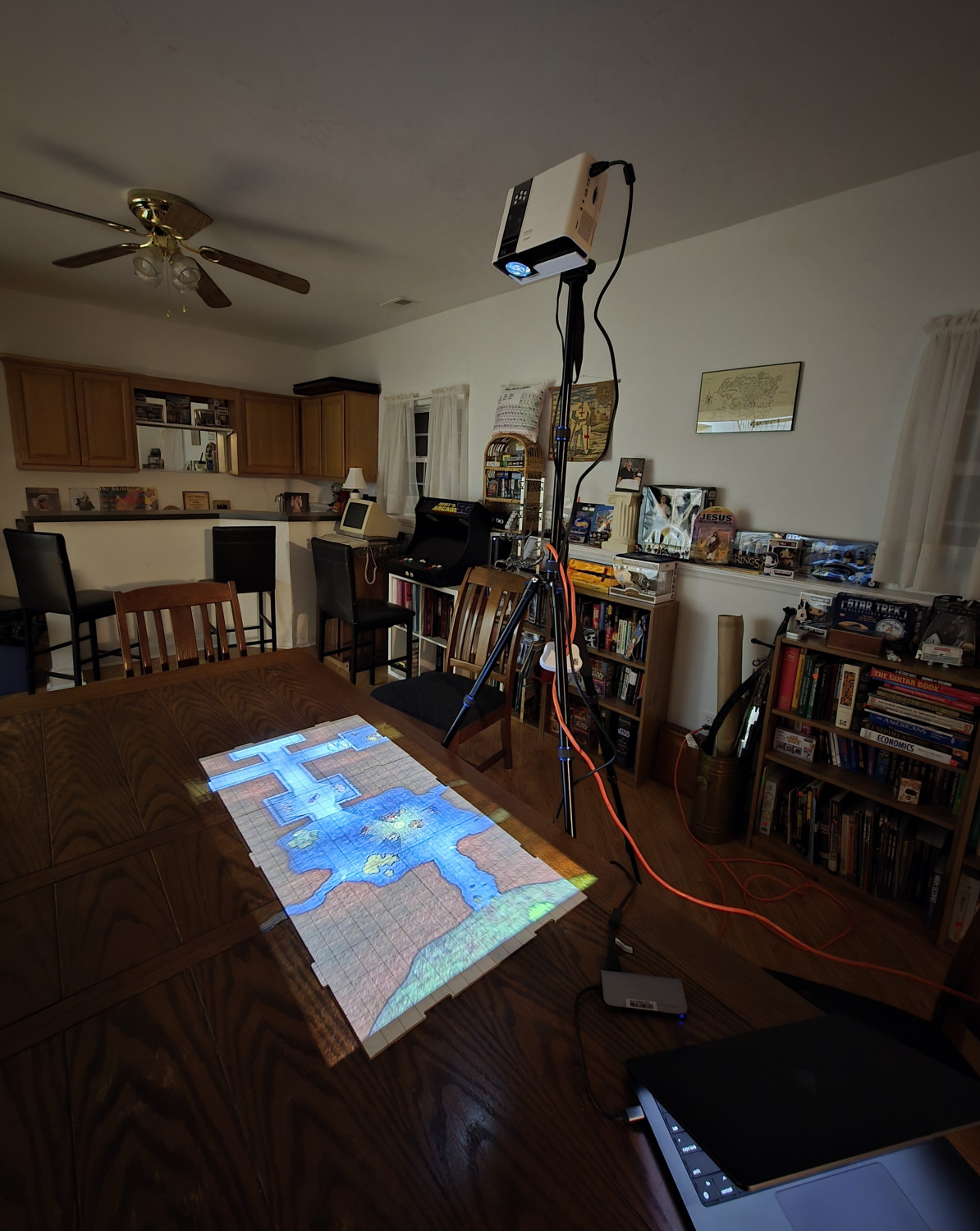
The map is a bitmap export of one of the Cartographers Annual maps. The most difficult part at this point is aligning the map grid with the grid on the whiteboard. The angle, focus, and zoom of the projector must be set once, and then you must align the computer display with the physical grid. If you have to scroll, then you start over. I think I need to buy a board with no grids and just use the ones on the map.
I plan to run a game soon. I'll use my own maps. I can't show them here because I don't want anyone involved to have an early peek.






 and 3 others.
 -
VTT Best Practices?
For Roll20, I just drag the image onto the page. It's dealt well with size and bandwidth on its own. If the image export snaps to CC3 grid squares, then the mapping of Roll20 grids is pretty easy: how many grids wide is it? Bam.
-
Tracing an existing map on paper or a image file.
Once I'm done doing this, I don't delete the image just in case I want to revisit it and not have to reimport and reposition it. However, simply hiding it where it is means that it's in the way. If you ever have to use "show all" sheets, it's back and in the way.
Instead, I move the image sheet to the bottom so it doesn't show, and it doesn't matter if it's visible. If I ever need it again, I can move it back to the top, and it will be in the same position and scale.

-
Wrought iron *decorative* gate
(edited step 4)
GIMP can select areas by color. You can select all white pixels on the image with one click. Maybe use a little tolerance to include your preferred shade of gray in the borders between white and black so it's not rough around the edges; it's a visible setting. Then add a layer mask based on that selection. White will then be transparent. You can save that as a PNG or put whatever color you want behind it with a fill of a other layer behind it.
Short answer:
1. GIMP
2. Select by color, click any white pixel
3. Menu: Layer, Mask, Add Layer Mask
4. Pick "selection" and check "invert selection" at the bottom.
Done!


-
Gurgen's Rock - Mining outpost
I think this is great. I love the texture.
The only thing I suggest is to compare the length of the cliff's shadow with the shadow of, say, a building. I think the cliff shadow is too short.
Maybe that's a perspective thing. Most of the map is overhead, but the cliff is not. I'd say that if the cliff were narrower and the entrances were at a sharper angle, it would match even better.
These are just comments, as I think the map is really good.