Monsen
Monsen
About
- Username
- Monsen
- Joined
- Visits
- 723
- Last Active
- Roles
- Administrator
- Points
- 9,029
- Birthday
- May 14, 1976
- Location
- Bergen, Norway
- Website
- https://atlas.monsen.cc
- Real Name
- Remy Monsen
- Rank
- Cartographer
- Badges
- 27
Latest Images
-
Floorplan Templates Missing?
The Floorplan category is mostly for modern florplans. For fantasy, look under dungeons, and for sci-fi, look under Cosmographer.
From SS1-6, only SS3 have anything under florplans.

-
Looking for Symbols of D&D style Dice
Also, instead of using lines with outlines, make two sets of lines, white lines on top of black lines. Make the black lines slightly wider than the white ones, and they will do the job of an outline without getting in the way.

-
Community Atlas - Arthenn / Berenur
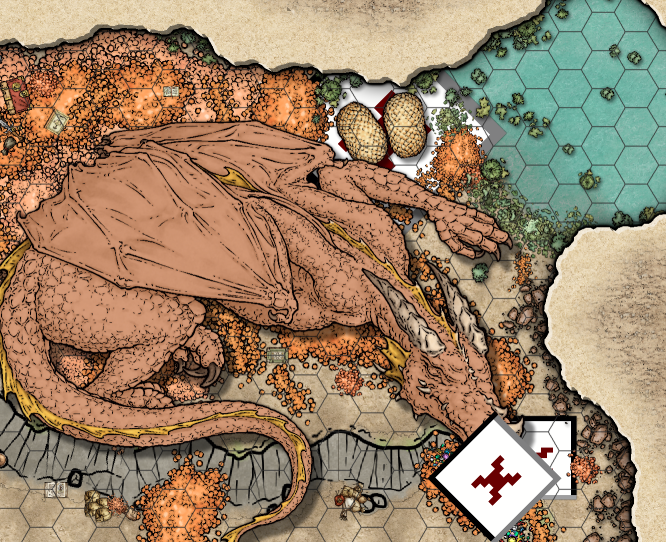
@Ricko Hasche I wasn't able to include the dragon map, as it contains unknown symbols. You'll need to edit it and replace these before I can use it in the atlas.
$____recursos mapas\MIKE SCHLEY PRESETS\arvore fogueira buraco\SS_TS005_006_Ground_Burned_Small_02_LG.png
$____recursos mapas\MIKE SCHLEY PRESETS\arvore fogueira buraco\SS_TS005_037_Smoke_Small_02_LG.png
Also, please make sure to check the scaling on your maps. A couple of them was badly scaled. For example, the scale bar in the Burned Emptiness was off, showing 200 while it should have been 100, while the actual map was correctly scaled (determined by looking at how it fit in on the overview map of the region). Some other maps had the opposite, where the scale bar values was logical, but the map itself was wrongly scaled.
You can easily check that the map and the scale bar matches up by using Info ->Distance and just measuring along the length of the scale bar. CC3+ should return a value equal to the length of your scalebar, if not, one of them is scaled wrong. You then need to determine if it is the scale bar (if so, you can just relabel the length on it) or the map itself, in which case you need to re-scale it.
I also believe that some of the maps have both a wrong scale bar and incorrectly scaled, as the length of the scale bar is correct when measured, but they don't seem to fit correctly in on the main regional map when plotted in at the correct size. This applies to the Hafr and Laugar maps.
Note that if you need to make changes to the maps I have already included in the atlas, it is important that you edit the files from the atlas, and not your own originals as that would delete the work I have already done in integrating them.
-
Community Atlas - Arthenn / Berenur
Another batch of maps from @Ricko Hasche ready in the atlas. Thanks for the contribution.


-
Knightstone | MMORPG Concept World Map.
Very nice. You've come quite a way in how you present these maps. The division into different zones doesn't look as jarring as it did in your early maps. While the zoning is still visible (which I know is your intent), the entire map still feel quite natural.
-
help with trace
That means you are picking the polygon in the wrong spot when you pick the polygon to trace. The spot you use to pick it is very important, as the trace line will always go through that point, so it needs to be on the section you intend to trace.
More here.
-
Resize the mountains in Default Terrain
That's a consequence of using the drawing tools from the "wrong" style. Did you start this as a Mike Schley overland map in the first place?
See this FAQ entry for how to import the missing fills.
-
Monthly Content Installed But Can't Find
Also note that the trick by clicking the :CC2SYMICOND: button only works if you have started a map in the appropriate style (i.e CC3 Mike Schley Overland or SS4 Dungeons of Schley styles). Otherwise you will need to load them manually as JulianDracos describes.
-
Deepzoom images for web display
If you want to keep the temporary files (the tiles) when using the large exports annual scripts, you can just comment out the line that deletes them from the @Annual\Issue 129 - Large Exports\tile.cmd script:
DEL /q tile*.png(This line appears two places in the script due to branching paths)
Do remember that this also means you need to manually clean them out before doing the next export however, or the stitching process will get confused.
And if you just want the tiles generated, and not stitch them together at all, you can comment out the two lines in the script starting with magick mogrify and magick montage.
And yea, you do absolutely need to use png when working with large images, as stated above, jpg cannot do these image sizes. But if you just export things as tiles from CC3+, you could switch that export to jpg to get jpg files instead of png tiles, since each tile is small enough, it's only when stitched together it becomes too large.
In the final deep zoom images I have made for the atlas (like Sanctuary) I exported as png from CC3+, but the final tiles used by the deep zoom script itself are jpg images as this gives much better performance due to smaller file sizes.
-
Community Atlas: Dendorlig Hall - A Sort-Of D23 Dungeon for Nibirum
@Wyvern wrote:
Checking the Atlas maps and notes, would I need to connect it to Scott's "Darklands" as well?
I would say that's completely optional. According to Scott's description, those are "deep underground". They're also continent-scale, so his map isn't at a detail level that would show any potential dungeon levels, so if you want a connection, it could be as simple as putting a trapdoor/hidden stair in any room and saying it leads to a long tunnel going down to the Darklands, or as you mention, just describing one of your chasms as being really deep....