Monsen
Monsen
About
- Username
- Monsen
- Joined
- Visits
- 723
- Last Active
- Roles
- Administrator
- Points
- 9,029
- Birthday
- May 14, 1976
- Location
- Bergen, Norway
- Website
- https://atlas.monsen.cc
- Real Name
- Remy Monsen
- Rank
- Cartographer
- Badges
- 27
Latest Images
-
Is there a runic font?
and while the person who designed it for FontSpace may have granted permission to use what they designed, I'm not entirely convinced that Tolkien's estate would agree.
This is a very worthwhile point to keep in mind. The artist's permission isn't worth anything if their work is based on something someone else had copyright on. Goes for all creative work. I've seen way to many occurrences of people use illustrations based on copyrighted works because they got permissions from the artists, where the artist didn't have any rights to make/reproduce those illustrations. A few things can fall under fair use, but most of it not.


-
Deckplan tutorial (COS)
Are you sure you picked the right option? The dialog in your screenshot is the one you get when you pick Cosmographer -> Multi-Deck Tools -> Manage levels [FLOORPLANADD], while the dialog in the guide is still the one you get when you pick Cosmographer -> Multi-Deck Tools -> Copy To Level [FLOORPLANCOPY]
-
CA The moated city of Thyra
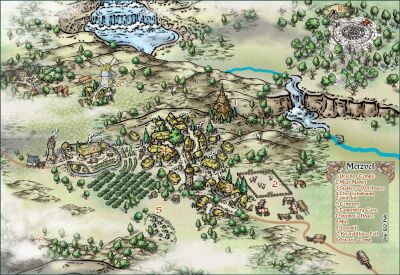
Now in the atlas. Thanks for the contribution @HelenAA


-
Community Atlas - Drachen Temple Battlemap
This batch of maps now processed. Thanks for the contribution @Ricko
We're now up to 1038 maps in the atlas, but I still have quite a few in my processing queue.
-
What art programs do you use?
@Kertis Henderson wrote:
7.04!?! That's loyalty!
It does almost everything I need to, and it is blazing fast. With most modern image editors, I am sitting around waiting for those things to start, even on a pretty beefy machine. PSP7 just appear on my screen instantly.
(Related, my image browser/viewer is ACDSee 2.42 from 1999. Most of my software is not this old, but somehow I am really pleased with the old image editing/viewing stuff.)