Wyvern
Wyvern
About
- Username
- Wyvern
- Joined
- Visits
- 3,240
- Last Active
- Roles
- Member
- Points
- 5,519
- Rank
- Cartographer
- Badges
- 24
Latest Images
-
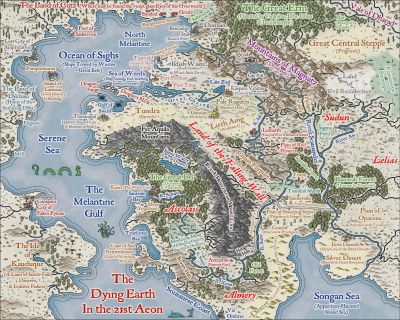
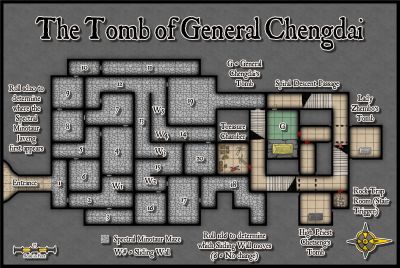
Live Mapping: Hex Maps
There are certainly some tricks to getting the best from this style, and a few oddities about it. I explored some of these last year. I do like the overall look of the style though - so straightforward and clear (though that may be the hex-board wargamer in me, as much as the role-player).


-
Mixing curves and straight lines?
It may be worth noting that using the "C" = corner command to add extra nodes can sometimes create problems because of the extra nodes very close together this generates, and you can end up with unwanted extra lines you didn't create apparently linking unconnected parts of the line to one another. You may only see these at certain zoom levels when viewing the CC3+ map, but if you can see them, they'll often export if you try to save an image, or print it out. This is far more likely to happen with fractal lines or polygons than smooth ones, as they have far more nodes in general, but that "C" command isn't always problem-free either, unfortunately.

-
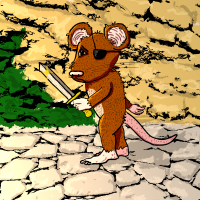
Live Mapping: Frontier Town
I seem to remember one old west town painted mostly red... [Clint Eastwood movie reference 😉🤠🏜️]
-
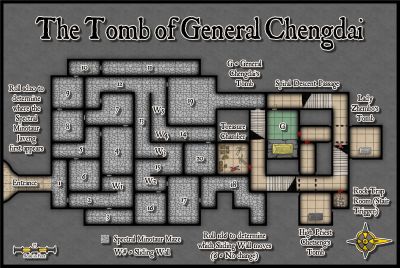
Large Pit room with Pillar Platforms
Yes, you can change the X and Y scaling for symbols very simply. When you've picked a symbol, just right-click to call up the Symbol Parameters pane as you would if you wanted to change the scaling ordinarily. There, you'll see an empty checkbox for "Independent X and Y". Click that box, and try whatever scaling seems appropriate for each axis - this is almost always trial and error, so you just need to persist. I usually find that what I thought should be the X axis is really the Y, but that's likely just me 😉...
-
Large Pit room with Pillar Platforms
I don't think there are any symbols that will do this for you easily, so you'll need to draw most of it. Thus you can just pick whatever style seems best to you for the look you're wanting to achieve.
As your initial drawing shows though, even a simple pit will give you a template from which to work with for this, although it may help to pick a spiked pit to assist in getting the descending pillar polygons to look right at their various angles. The wall lines alone help with those near the pit's edges, after which you simply need to adjust the angling as you work inwards. There's a spiked pit in the standard DD3 symbols, for instance. To make it rectangular, simply set different suitably-sized X and Y coordinates when you're adjusting the symbol's size. This will produce distortion (especially of the spikes), but as you're just using the symbol as a guide for drawing to, that shouldn't matter much.
The pillar polygons will need some shading applied to make it look like they're fading away into darkness (like the pit walls in your post here), which can probably be best achieved using additional polygons drawn over the "lower" parts of the pillars (try the darker Solid bitmap fills that have various transparencies built in), coupled with some edge fade effects to blend one to the next (you'll need to set up several extra sheets to get this to work well enough). It probably won't be quick or easy to do this, because you'll have to keep stopping and thinking about what to do next (I know I would, which is what I'm basing this on!).
If you get stuck, just ask again here. Or maybe someone else more technically adept will come up with a much more elegant, and swifter, solution in the interim!