

Importing Files into Fractal Terrains 3

Hello,
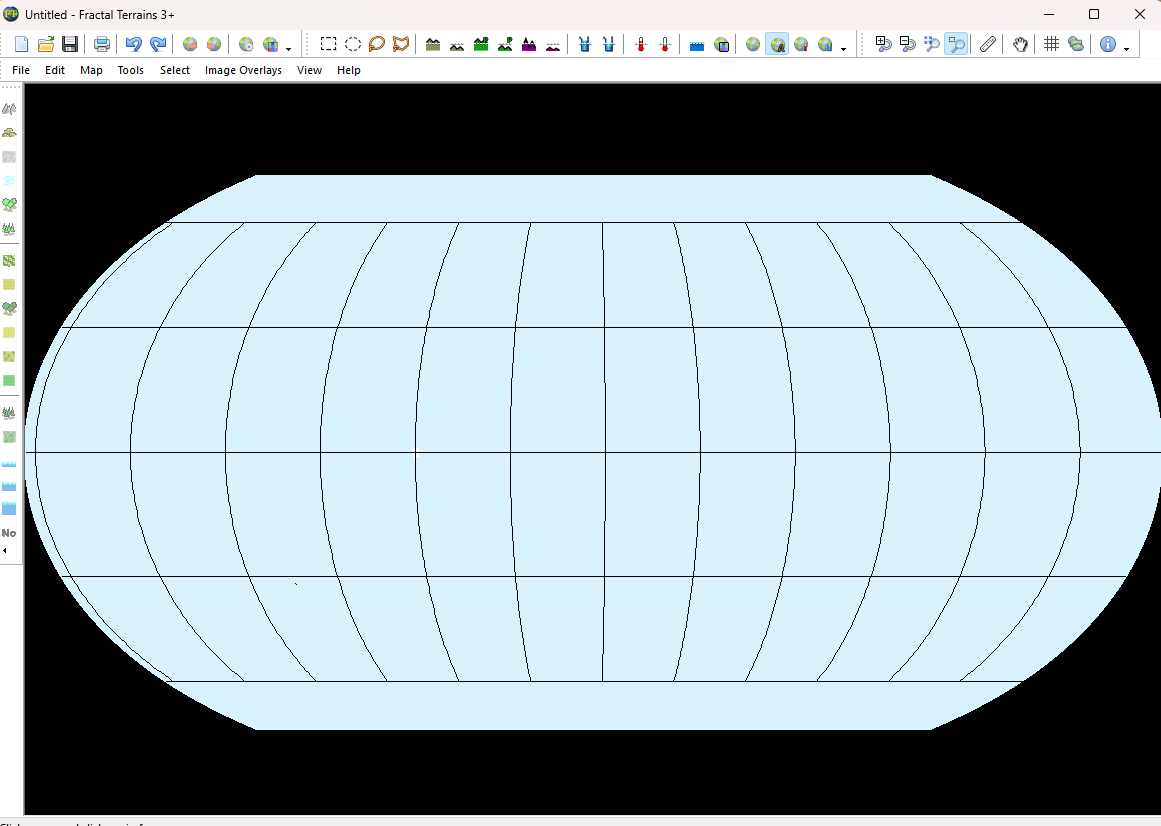
New user of Fractal Terrains experimenting around with it. I'm curious how one may import files to into Fractal Terrains 3. I've tried to import PNG (generated in GIMP) and MDR (generated in Wilbur) files of a conworld into the FT3 program but the images do not import.
Does it require another format to display the world? I've displayed the (lack of) result as a screenshot attached to this post.
Tagged:
Comments
A flat blue world generally means that FT can't read the input file or that FT is improperly interpreting the file contents. If you're trying to import a new file, then you probably can read the file. That means that the most likely problem is that there's a mismatch between the information in the file and the information in FT.
To import an MDR file from Wilbur that spans the entire world, use File>>New menu, Binary File, Choose Elevation File to bring up the Binary Data dialog. On that dialog, pick your file using the ... button, then set the Map Edges area in the lower left of the Binary Data dialog so that Top=90, Left=-180, Right=180, and Bottom=-90. Make certain that the File Data area's Width and Height fields match the expected width and height of the MDR file. Finally, click OK to accept the Binary Data settings and click through to the end of the New File wizard. You MDR file is likely to be upside down in FT compared to Wilbur because of my poor attention to detail in keeping two thing synchronized, but Surface>>Rotate>>Flip Vertically in Wilbur before saving the MDR file should work around that.
Once the file is showing in FT, it's important not to move the original MDR file because FT will show a light blue and flat world when it can't find the file. If you'd like to force the height data into FT, use Map>>World Settings to bring up the World Settings window, pick the Editing tab, and set your Editing Size width to the same width as your input file. That modification will let you keep as much information as possible from the binary file. After setting the world editing size, use Tools>>Actions>>Bur In To Surface to copy data from the binary file into FT's internal memory. File>>Save will then keep the binary data in FT and the original source file can move without losing the data.
To import a PNG image as an overlay to your existing world, use Image Overlays>>Show Overlay Window menu to bring up the Image Overlays window, click the Add button to bring up the Edit Image Overlay window, and then Import Color Image to select your PNG image. Click OK to close the Edit Image Overlay window and your image should appear on the world.
If you want to import a PNG as a height field, I recommend going through Wilbur as an MDR file.
Thank you so much!!! I've tested it and the desired image has imported into FT3 as a height field.